Hub
A centralised space for sharing announcements, resources, and updates with your learners.
The Hub acts as your organization's digital bulletin board. While users will land on their Learning Dashboard when they first log into the TechClass platform, the Hub is always just a click away in the top navigation bar. As an administrator, you can use the Hub to broadcast important announcements, share quick links to internal company tools, and distribute essential files.
To manage the content displayed on this page, navigate to People > Hub in the Admin Portal sidebar.
At the top right of this configuration page, you will see a View Hub button. You can click this at any time to open a new tab and see exactly how your published content looks to your learners!
1. Managing News Announcements
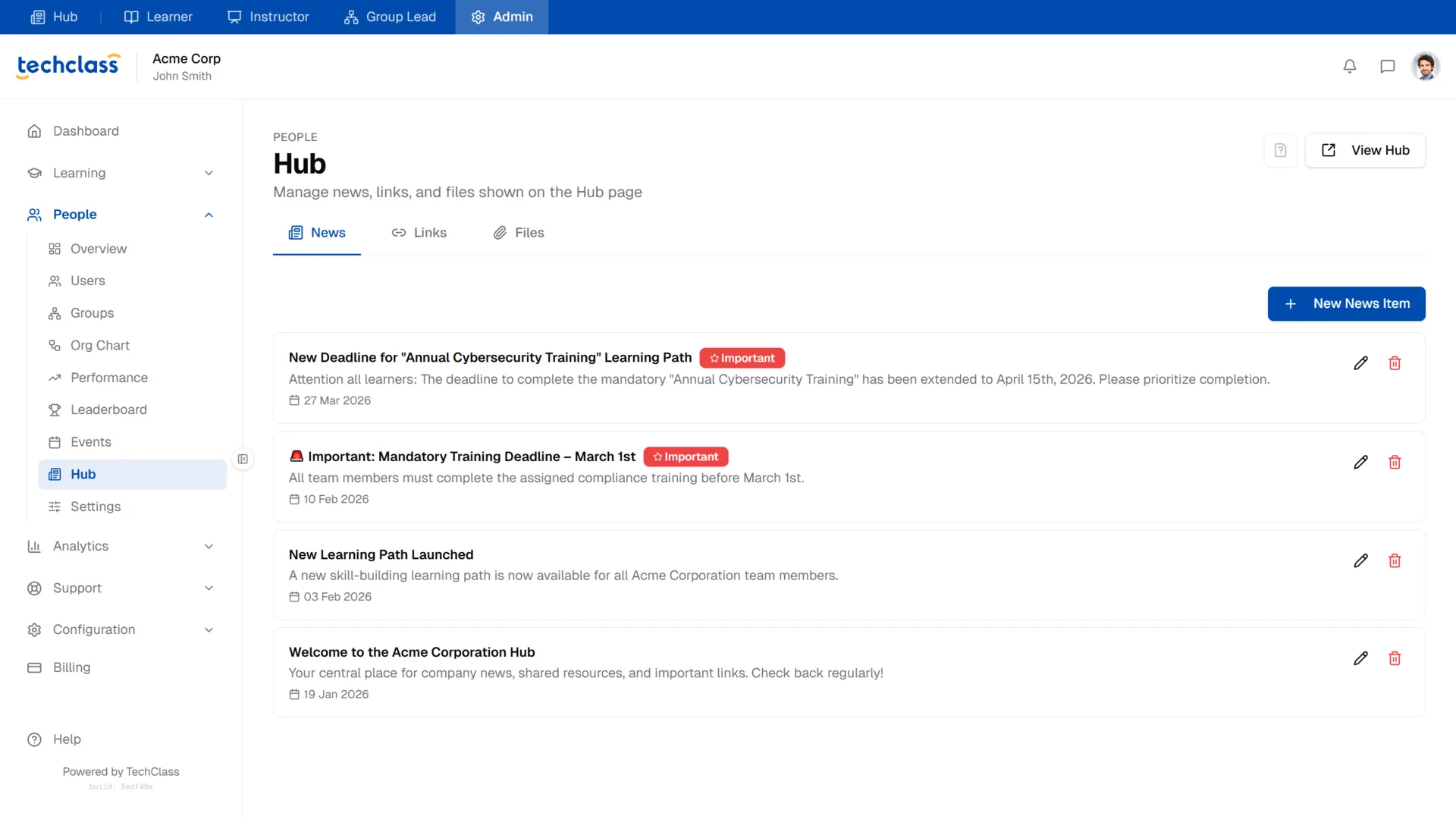
The News tab allows you to publish updates to your entire organization. This is perfect for announcing new mandatory training deadlines, welcoming new cohorts, or sharing company-wide achievements.
Creating a News Item
To publish a new announcement, click the blue + New News Item button.
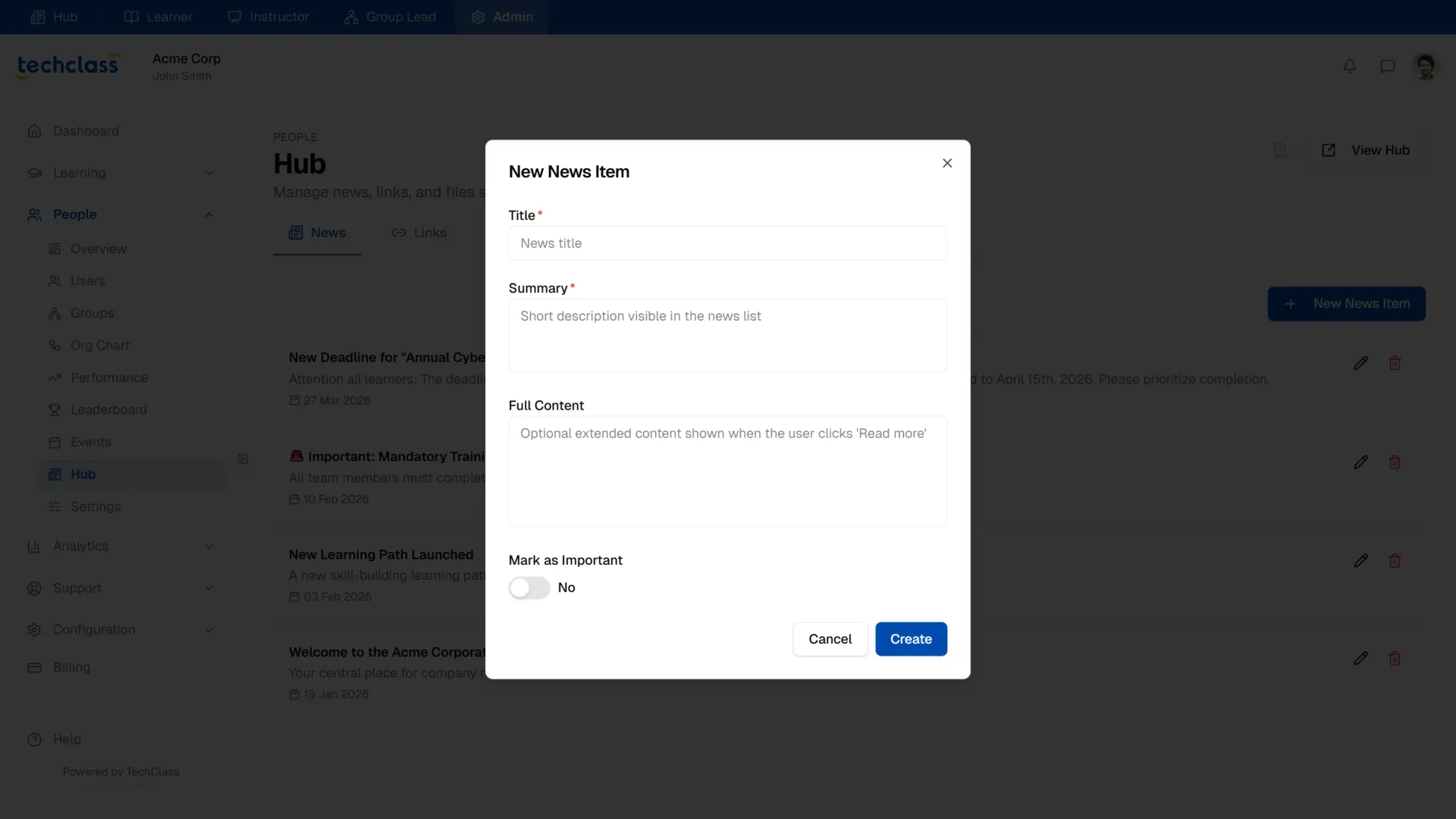
- Title: The headline of your announcement.
- Summary: A short, punchy description that appears directly on the Hub card.
- Full Content: Optional expanded text. If you add content here, learners will see a "Read more" link on the Hub card to view the full message.
- Date: The display date for the announcement.
- Mark as Important: Toggling this to Yes will add a highly visible red "Important" badge to the post and pin it to the top of the learners' news feed.
Editing and Deleting News
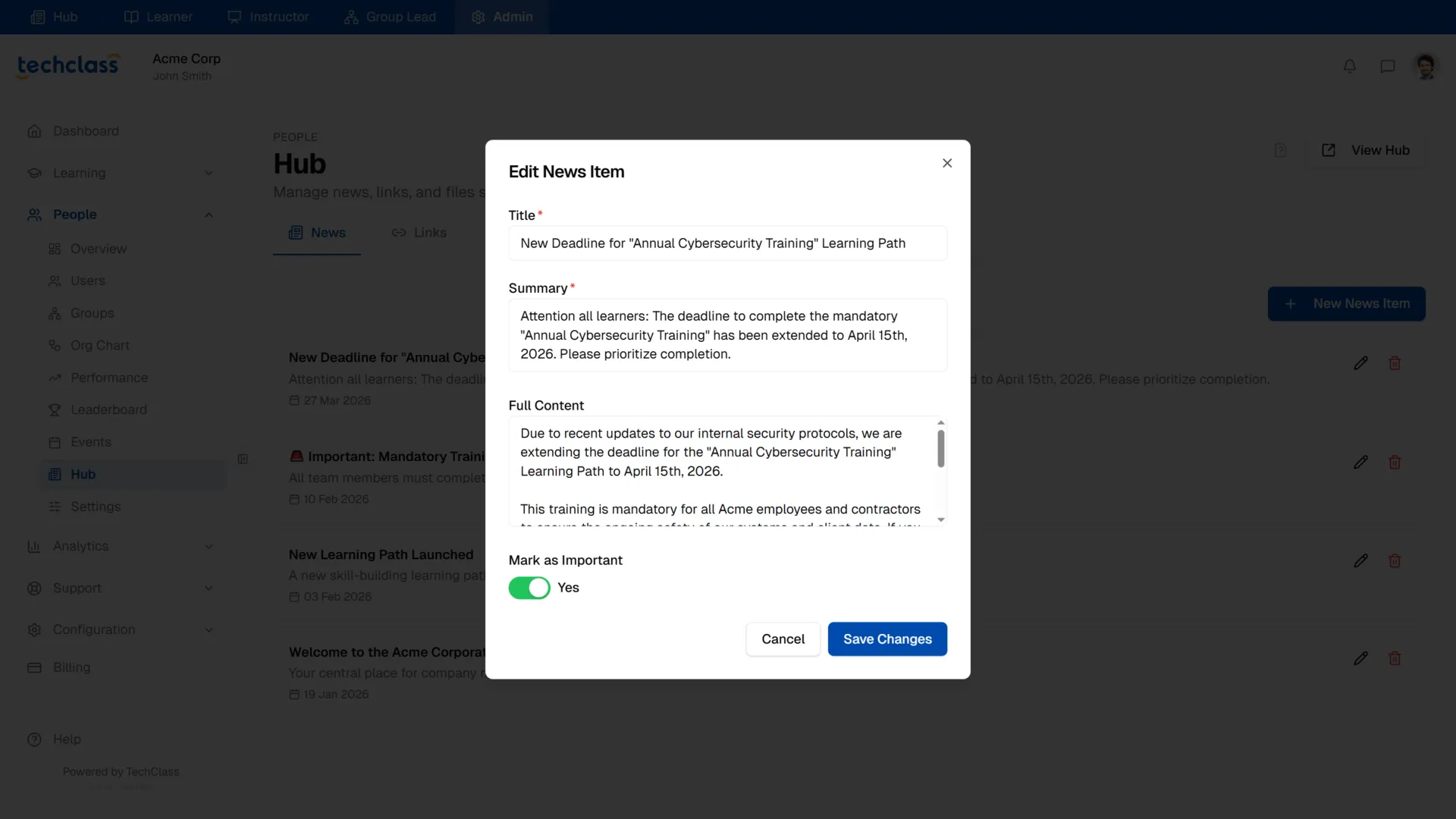
If you need to update a typo or extend a deadline, click the Pencil icon next to the news item to open the Edit modal.
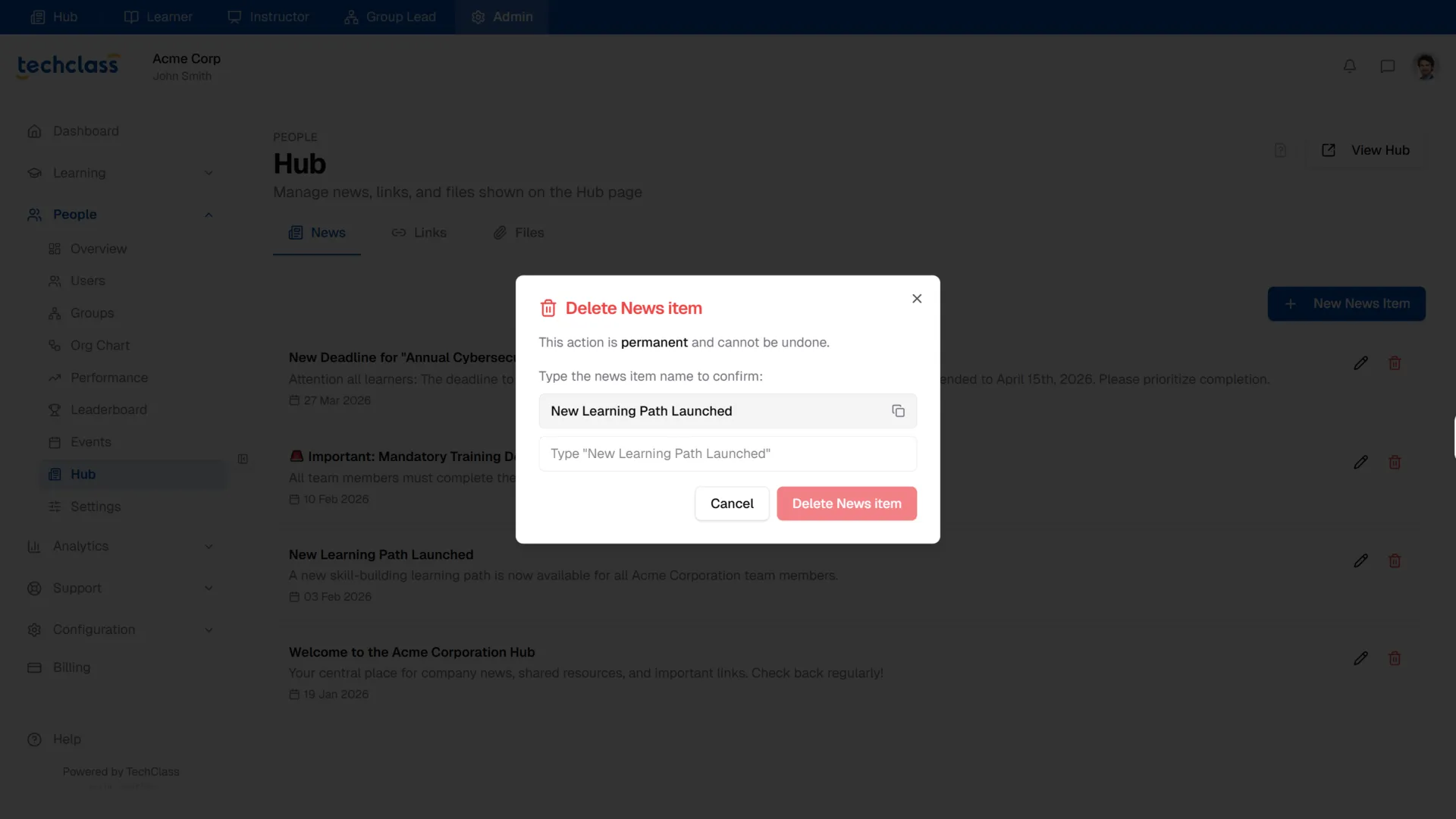
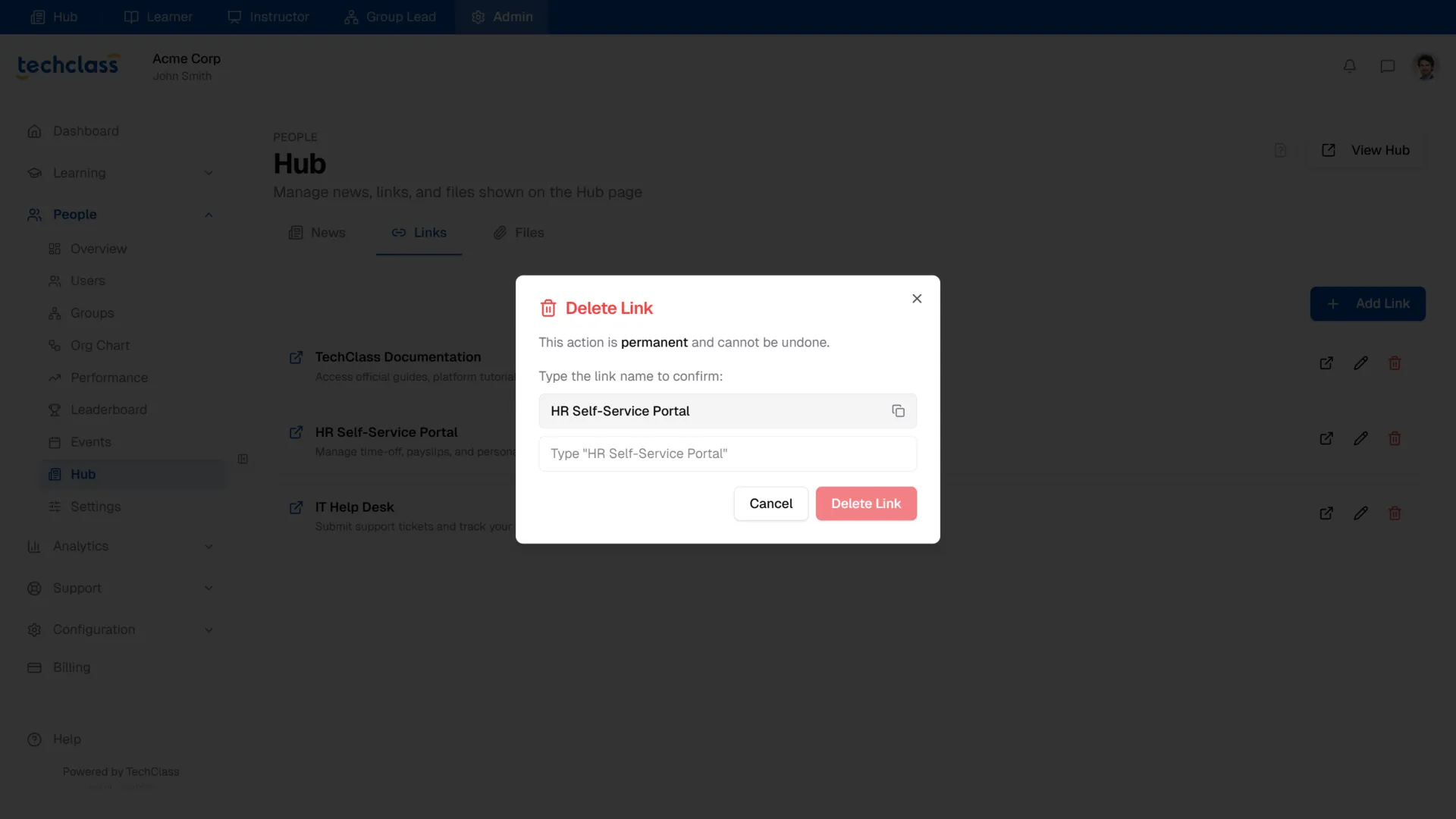
To remove an outdated announcement, click the red Trash Can icon. Because this permanently removes the post from everyone's feed, you must type the exact name of the news item to confirm the deletion.
2. Managing Important Links
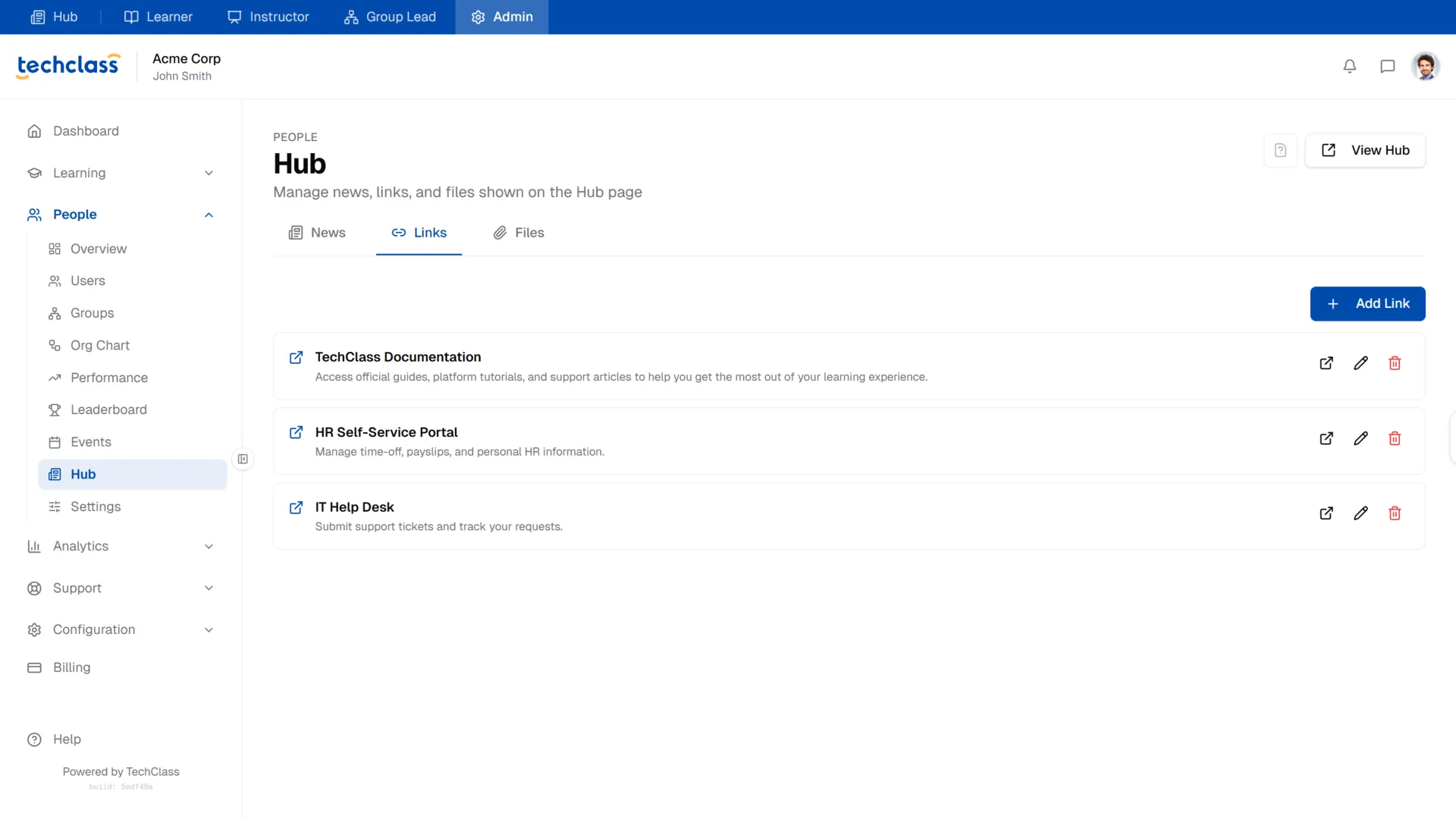
The Links tab lets you pin external URLs to the Hub. This turns your learning platform into a true central gateway for employees, allowing you to link out to HR portals, IT Help Desks, or external surveys.
Adding a Link
Click the + Add Link button to create a new shortcut.
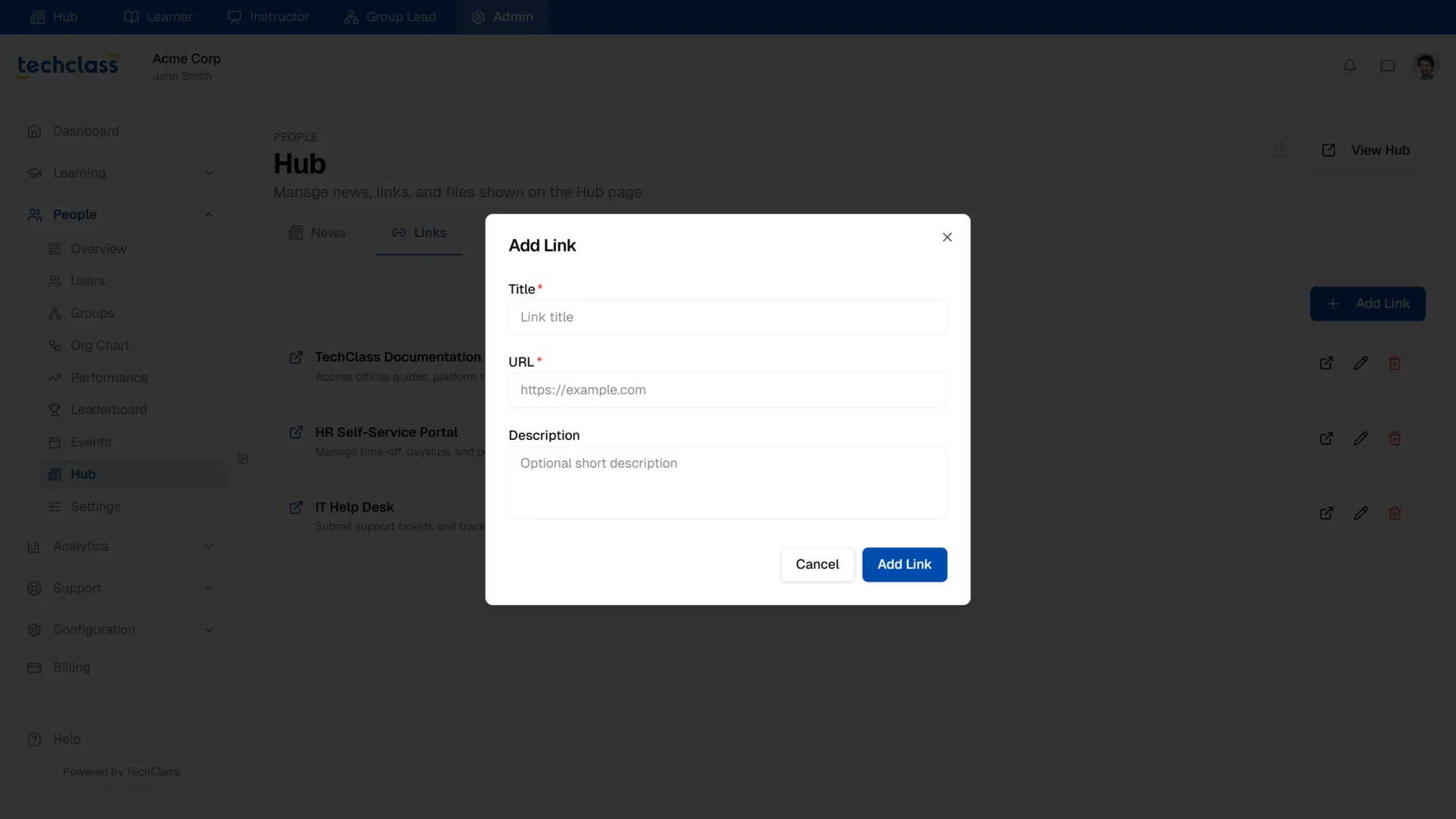
- Title: The display name for the link (e.g., "HR Self-Service Portal").
- URL: The full web address (e.g.,
https://hr.example.com). - Description: A short sentence explaining what the link is for.
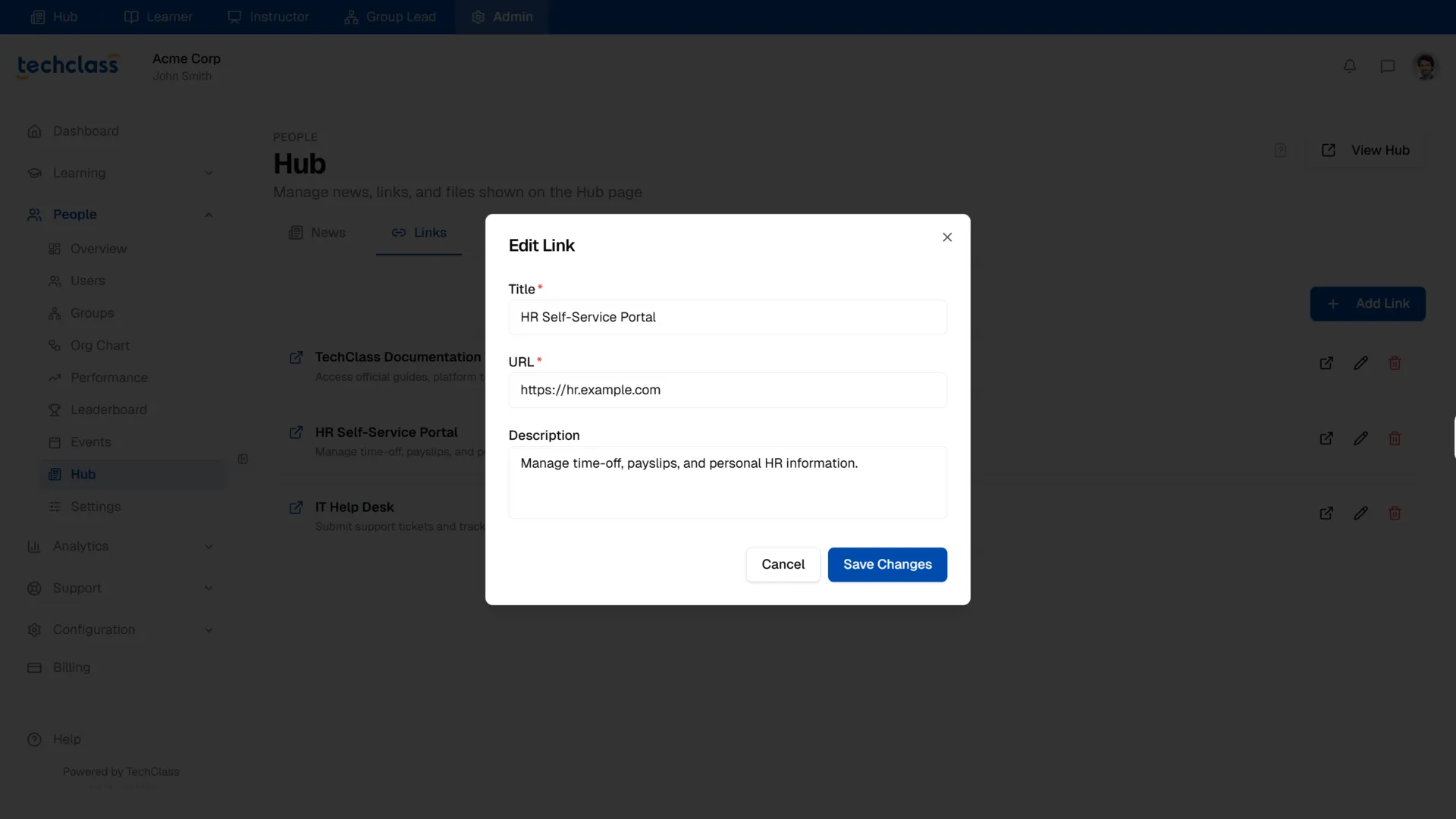
Just like News items, you can use the Pencil icon to edit the link details or the Trash Can icon to permanently delete it (which also requires a typed confirmation).
3. Managing Shared Files
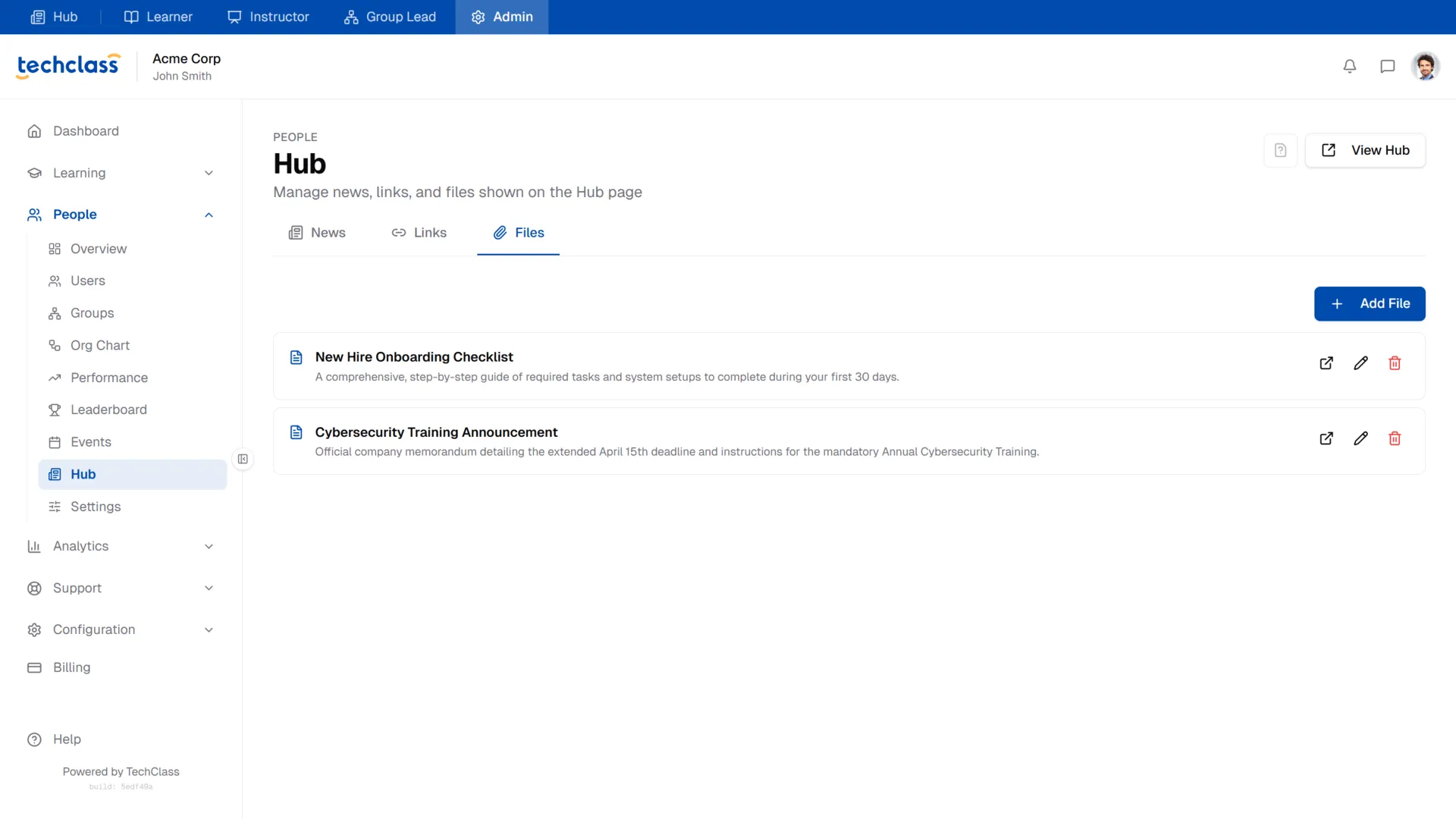
The Files tab is used to distribute organization-wide documents that do not belong to a specific course. This is ideal for Employee Handbooks, IT Security Policies, or official company memorandums.
Adding a File
Click the + Add File button to share a new document.
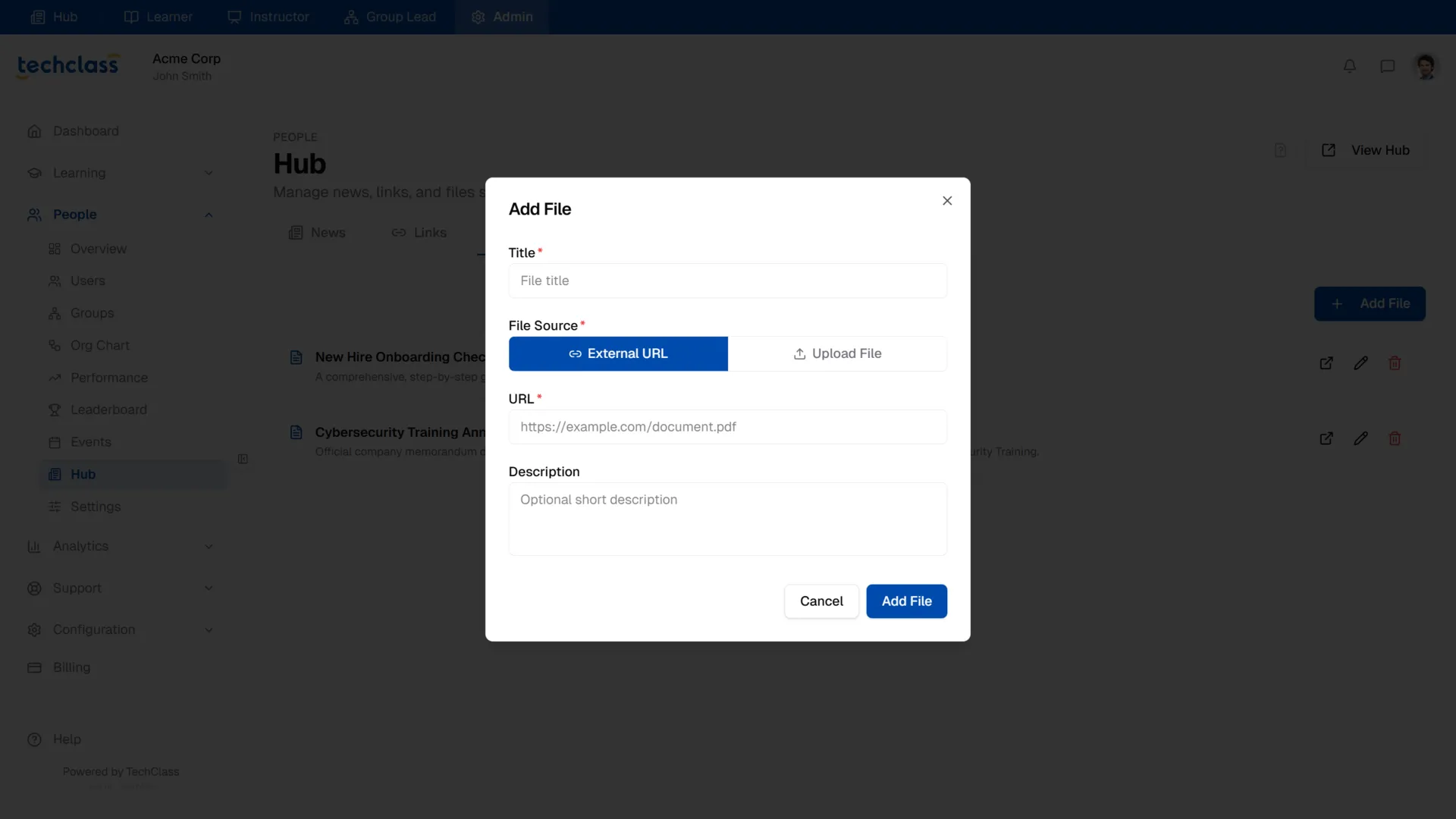
You have two options for the File Source:
- External URL: If the file is hosted elsewhere (like a public Google Drive link, SharePoint, or an external server), you can simply paste the URL.
- Upload File: If you want TechClass to host the document securely, switch to this tab to upload the file directly from your computer.
Provide a Title and an optional Description, then click Add File. Learners will now be able to view and download this document directly from their Hub!
Editing and Deleting Files
If a policy changes and you need to update a file's URL or description, click the Pencil icon to open the Edit modal.
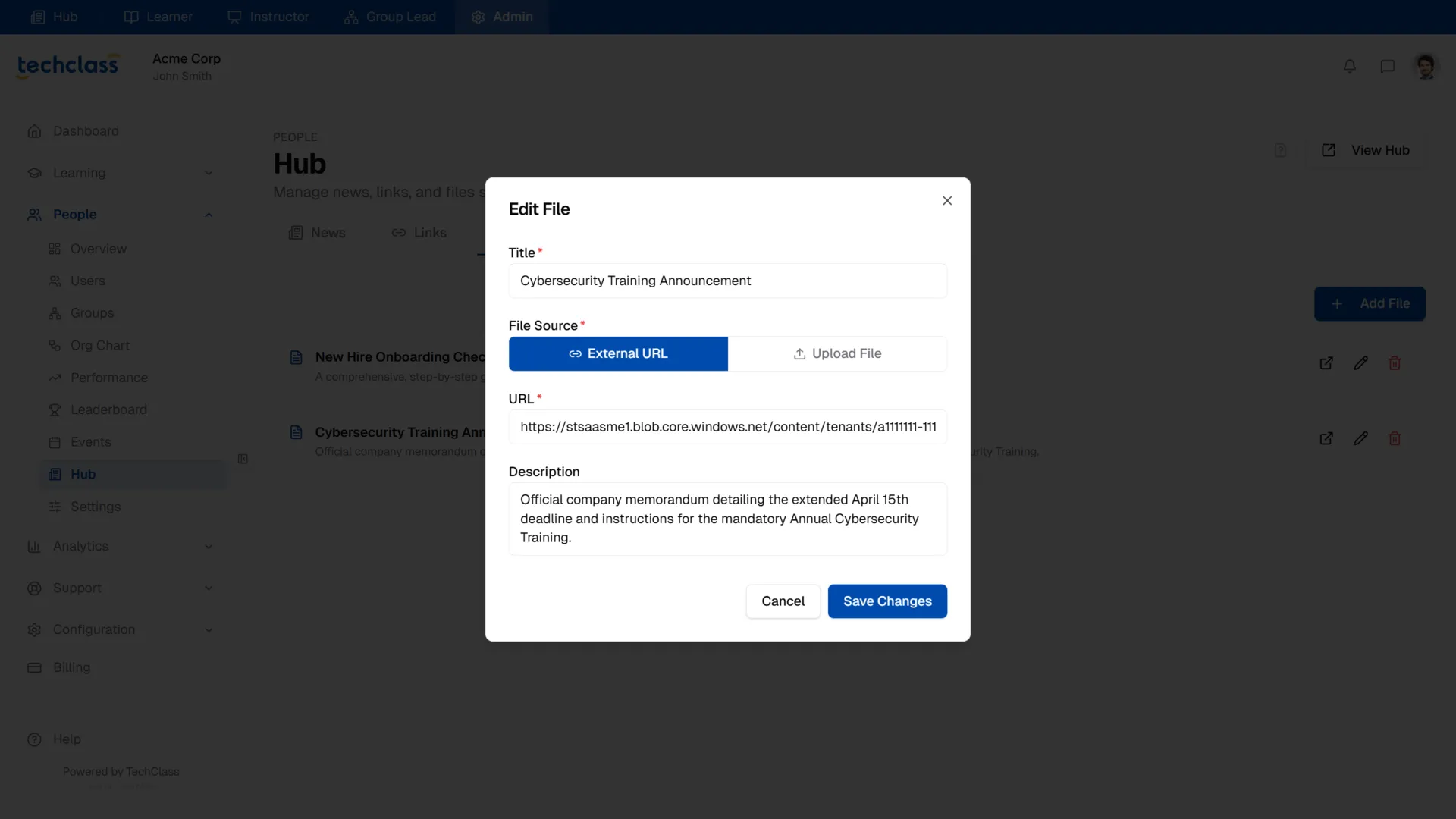
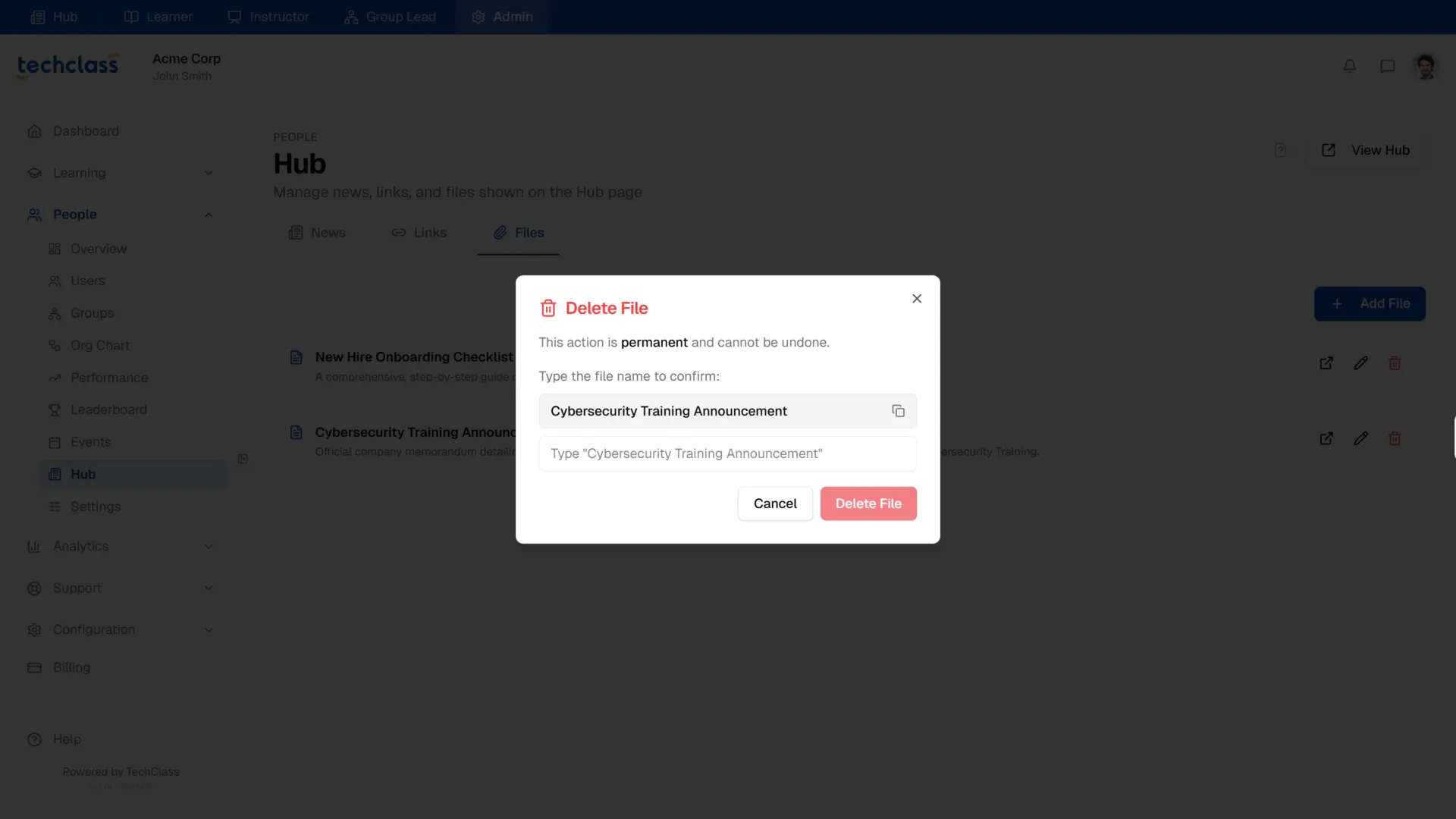
To remove a file entirely from the Hub, click the red Trash Can icon. Just like other Hub elements, this action is permanent and requires you to type the exact file name to confirm.