
Compliances
Track and enforce compliance training requirements across your organisation.
Unlike standard courses that an employee only takes once, Compliance Requirements are recurring trainings. These are critical for certifications, annual refreshers (like GDPR or Fire Safety), and industry regulations.
The Compliance module allows you to map a specific course to a target group, set an expiration timeframe, and automatically track who is compliant, whose certification is expiring soon, and who needs to be remediated.
To access your compliance tracker, navigate to Learning > Compliance in the Admin Portal sidebar.
1. The Compliance Dashboard
The main dashboard gives you a bird's-eye view of all active compliance requirements in your organization.
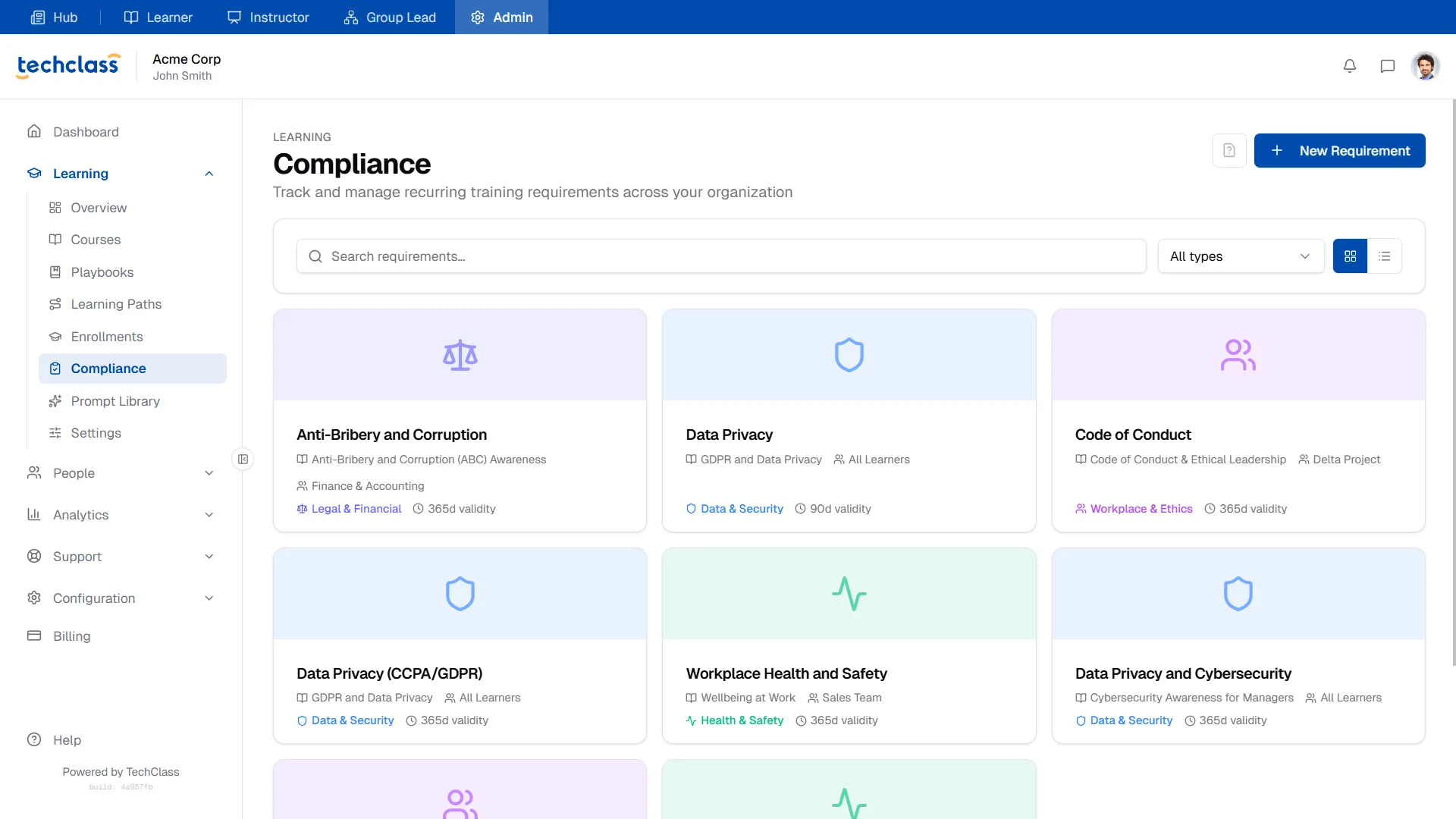
Each card displays essential information at a glance:
- Requirement Name: (e.g., "Data Privacy")
- Mapped Course & Target Group: Shows which course satisfies the requirement and who must take it (e.g., "All Learners" or "Sales Team").
- Validity Period: How long the training remains valid before the user must retake it (e.g., "365d validity").
2. Creating a New Requirement
To enforce a new mandatory training, click the blue + New Requirement button in the top right corner.
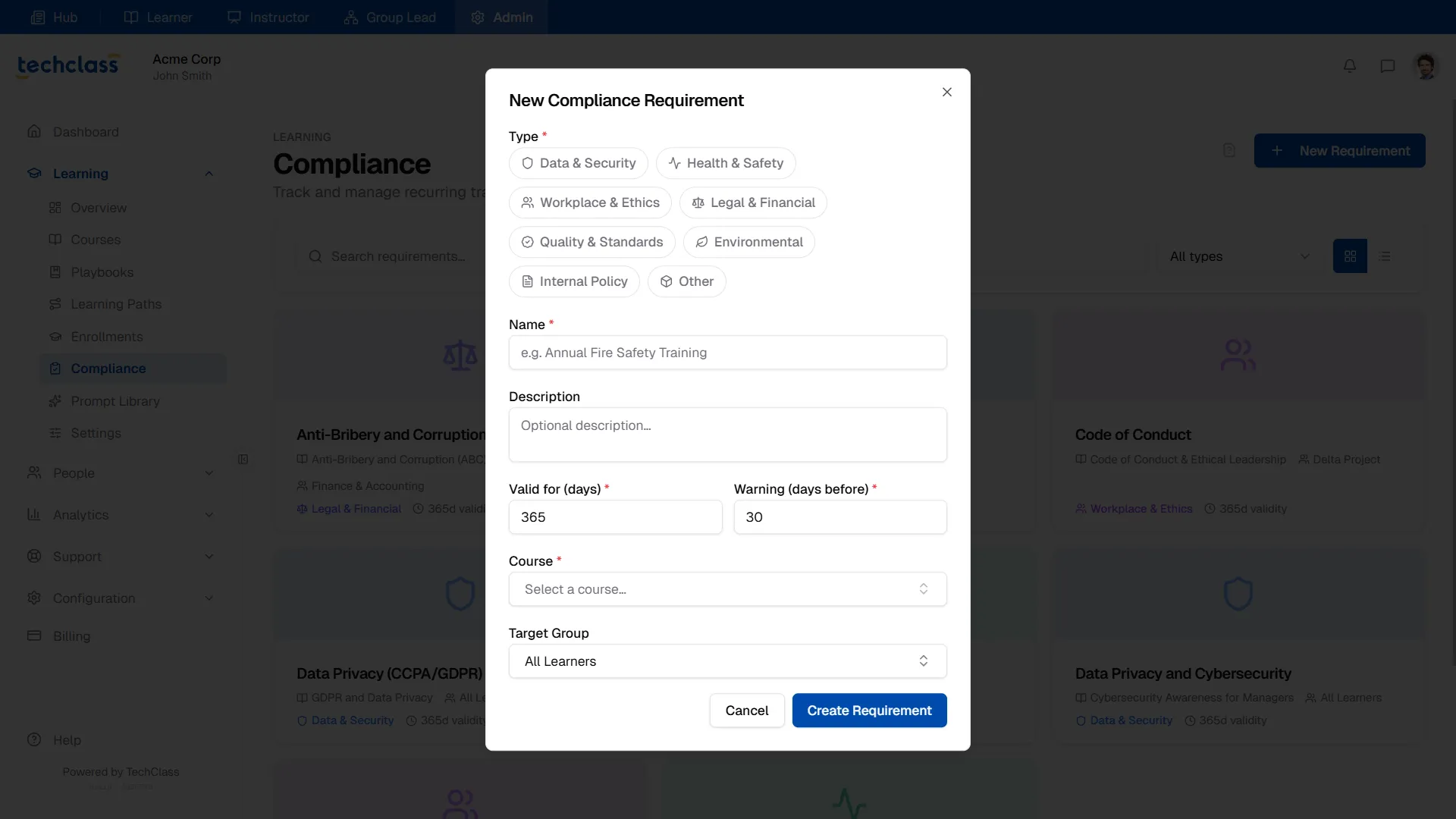
You will need to configure the following rules:
- Type: A visual tag to categorize the requirement (e.g., Health & Safety, Legal & Financial).
- Name & Description: What the requirement is called in your reports.
- Valid for (days): How long the certification lasts once a learner completes the mapped course. For an annual training, enter
365. - Warning (days before): How many days before expiration the system should flag the learner as "Expiring Soon." For example, entering
30gives employees a month's notice to retake the course. - Course: Select the specific TechClass course that fulfills this requirement.
- Target Group: Choose who must comply. You can select "All Learners" or restrict it to a specific Group (like the "HR Department").
Click Create Requirement to activate it.
3. Compliance Overview & Metrics
Clicking on any requirement card from the dashboard opens its detailed management view. The default Overview tab provides real-time metrics on your organization's adherence to this rule.
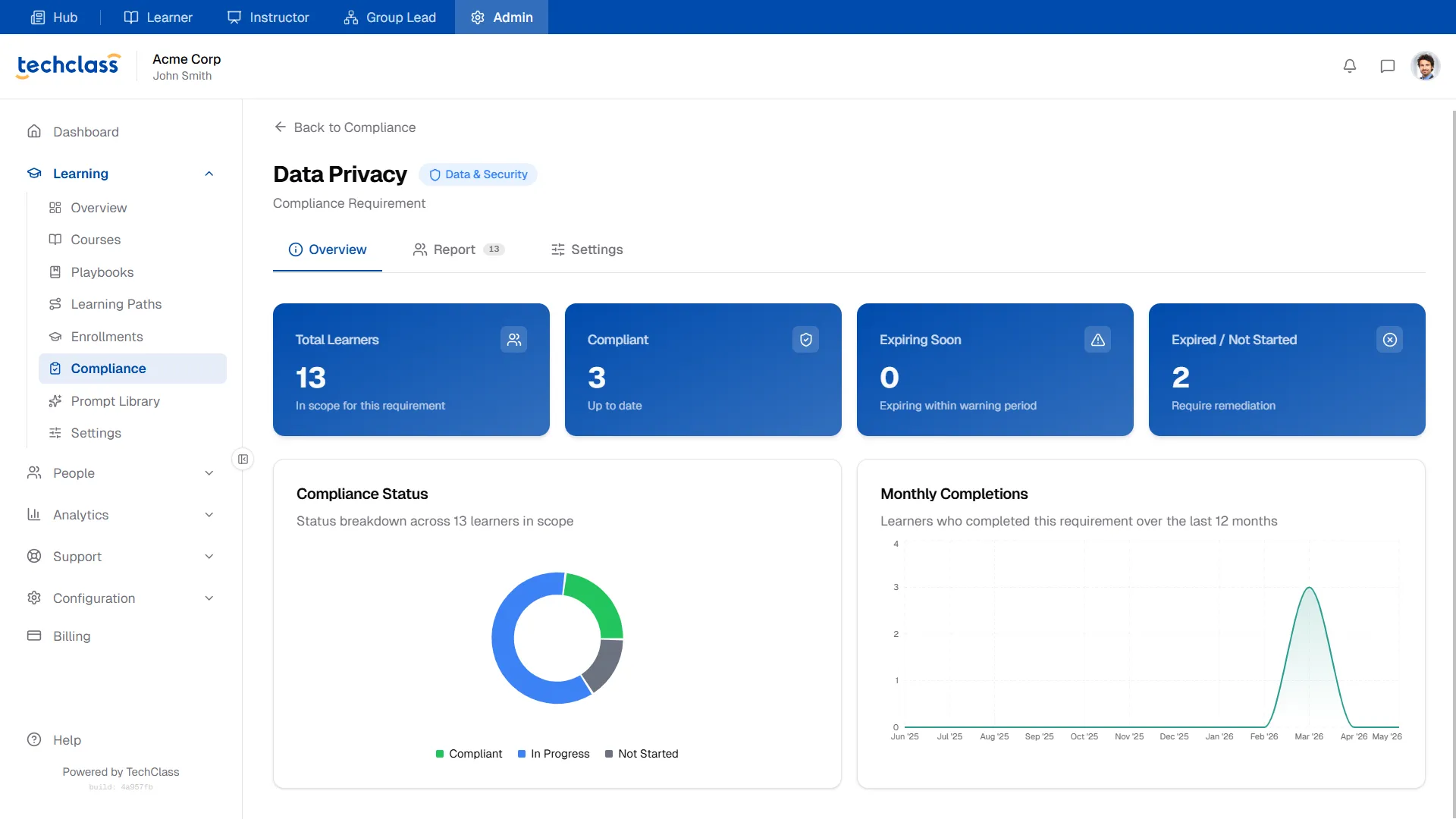
Here you can monitor:
- Top Metric Cards: Instantly see the Total Learners in scope, how many are Compliant, who is Expiring Soon, and who is Expired/Not Started.
- Compliance Status Chart: A donut chart providing a visual breakdown of your overall compliance health.
- Monthly Completions: A line graph tracking when users are actually finishing the training, helping you identify seasonal bottlenecks.
4. The Compliance Report & Remediation
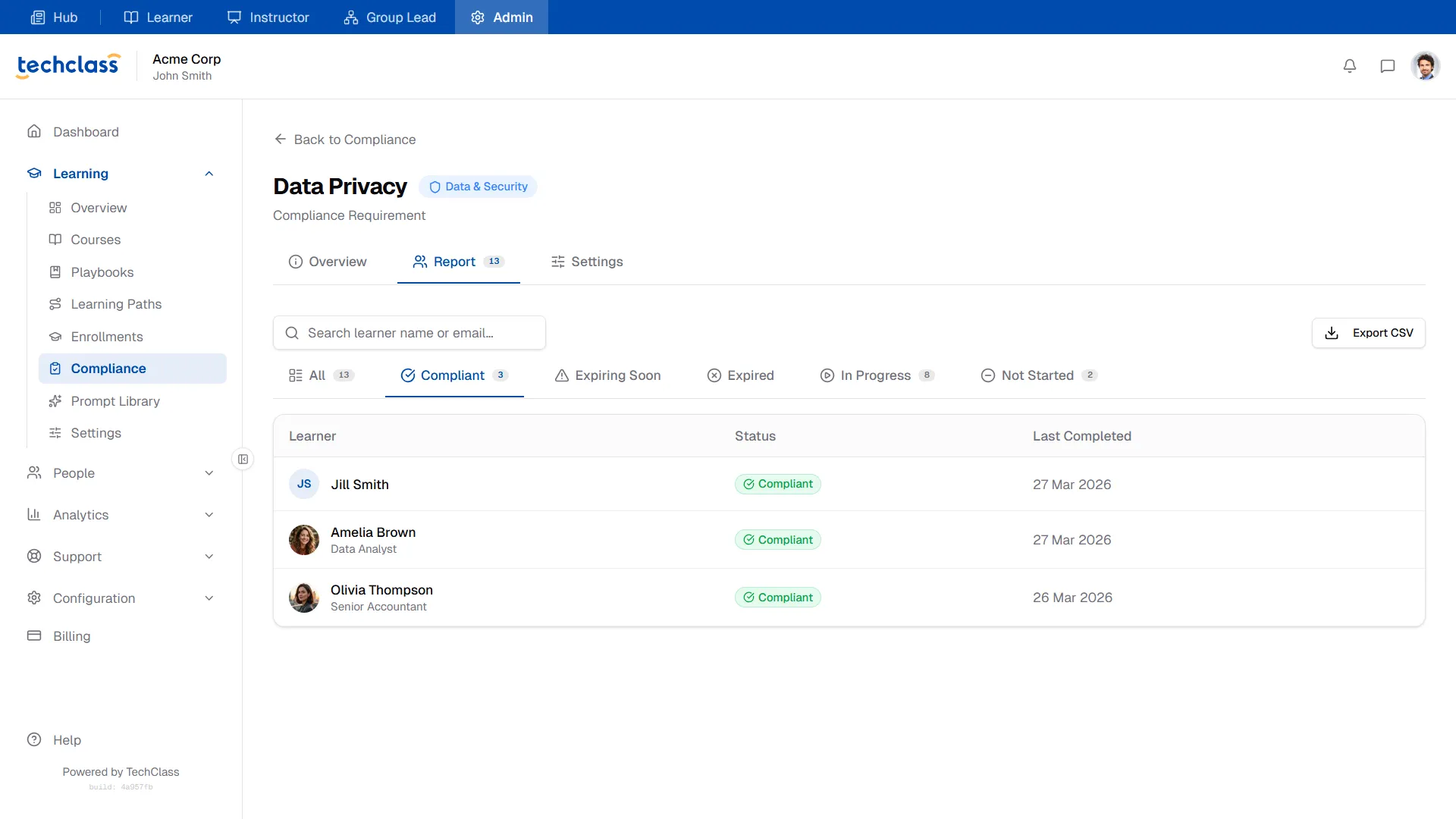
The Report tab is your operational command center. This is where you dig into individual learner records to see exactly who is falling behind.
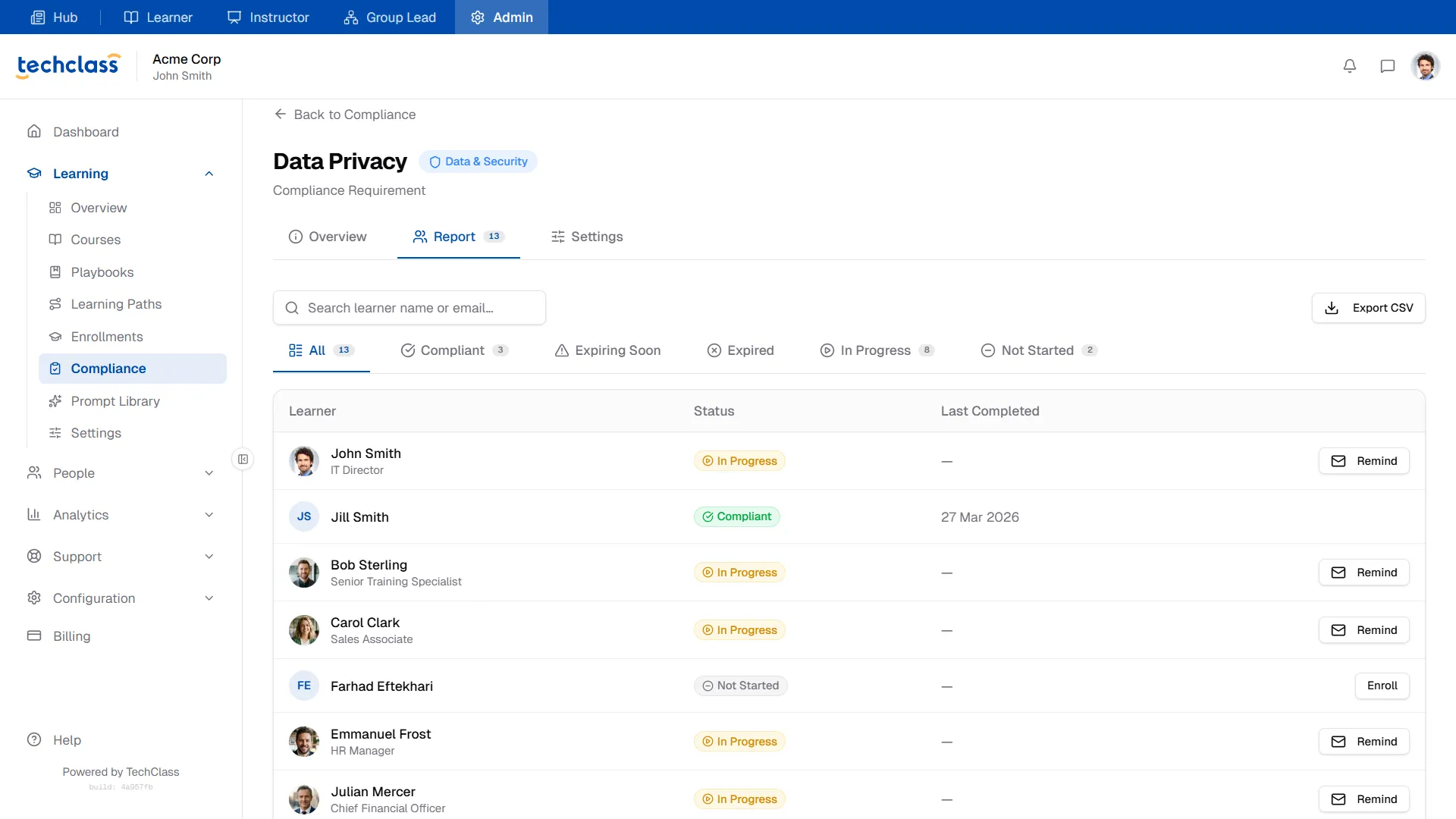
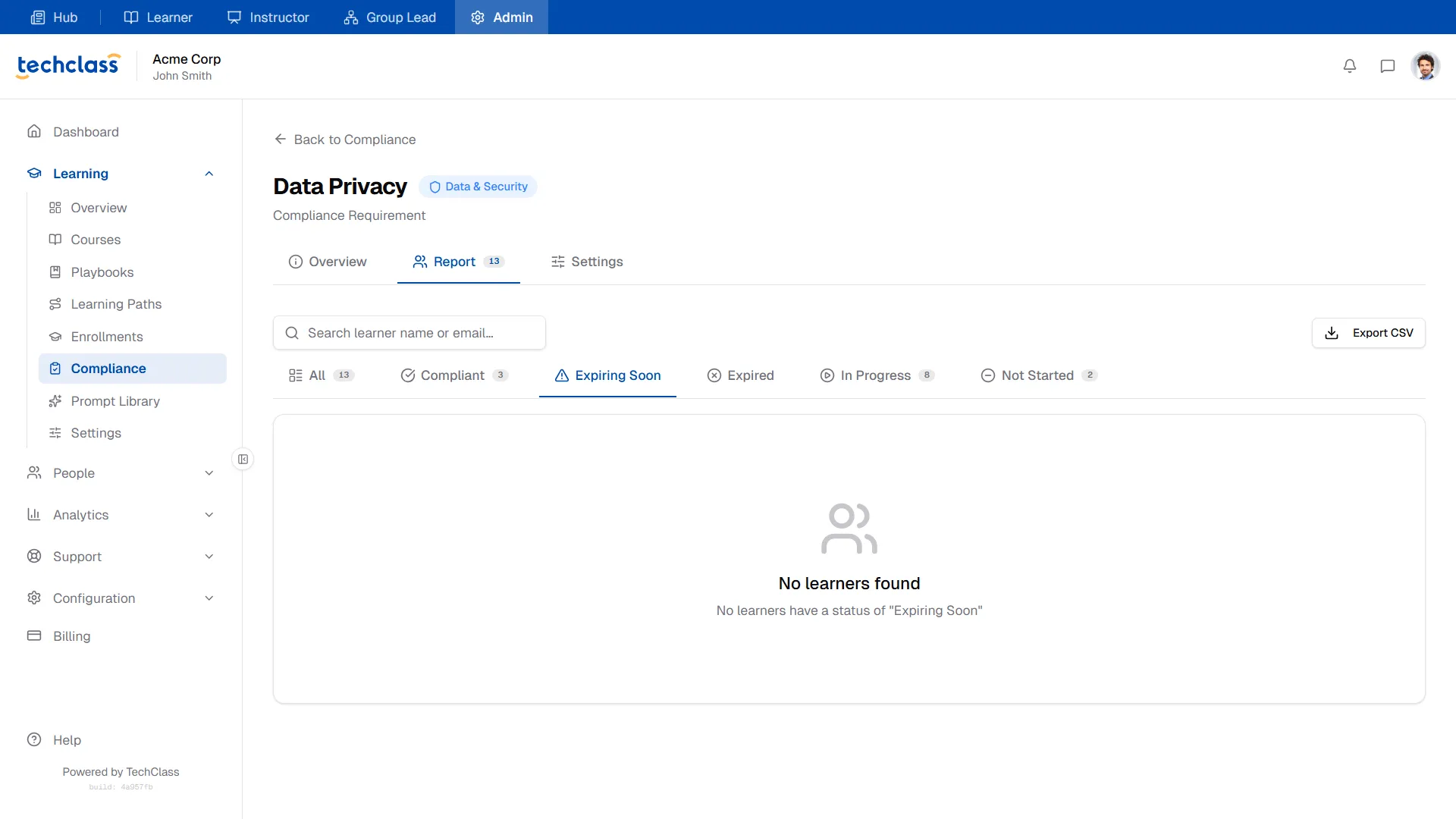
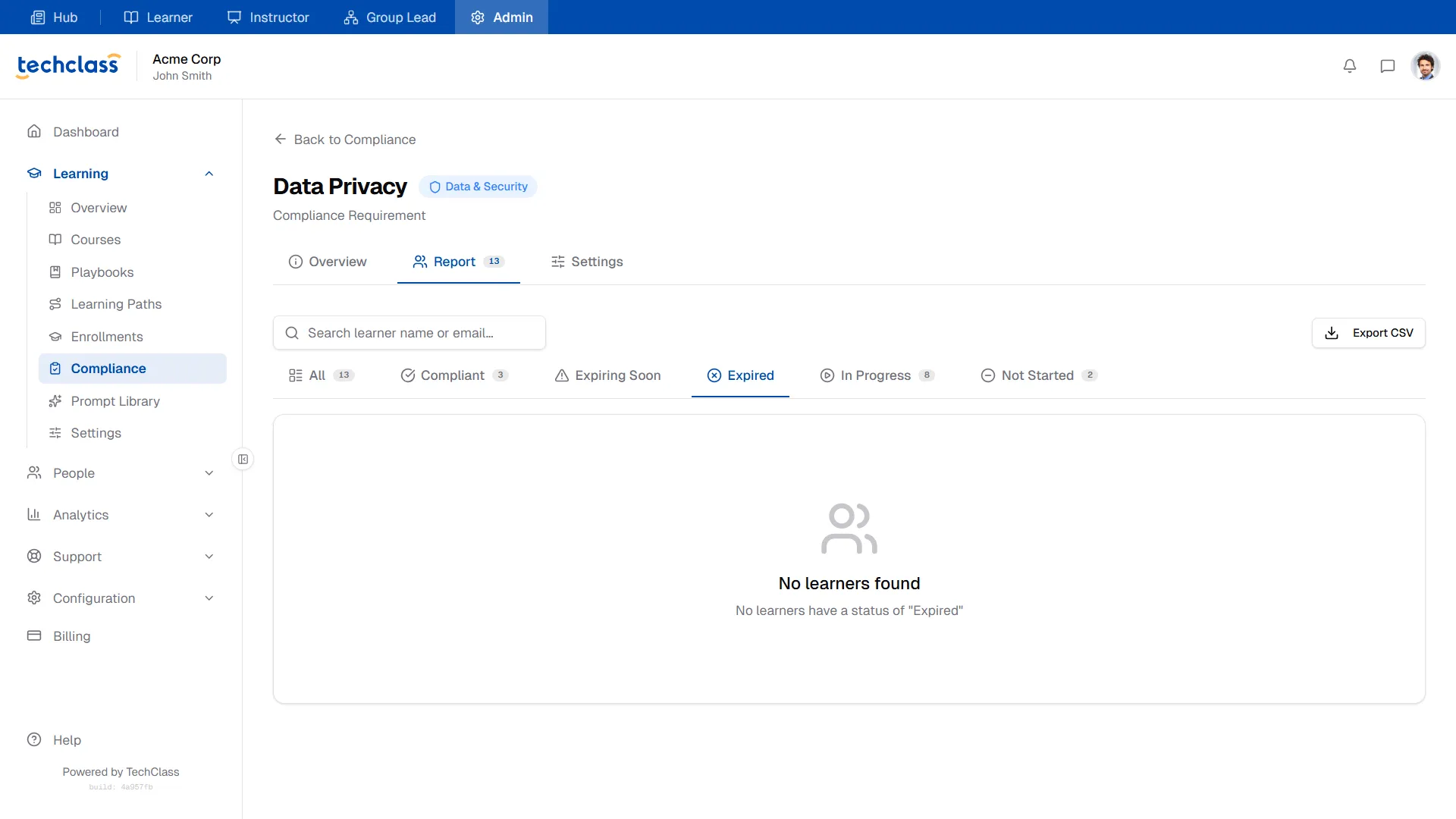
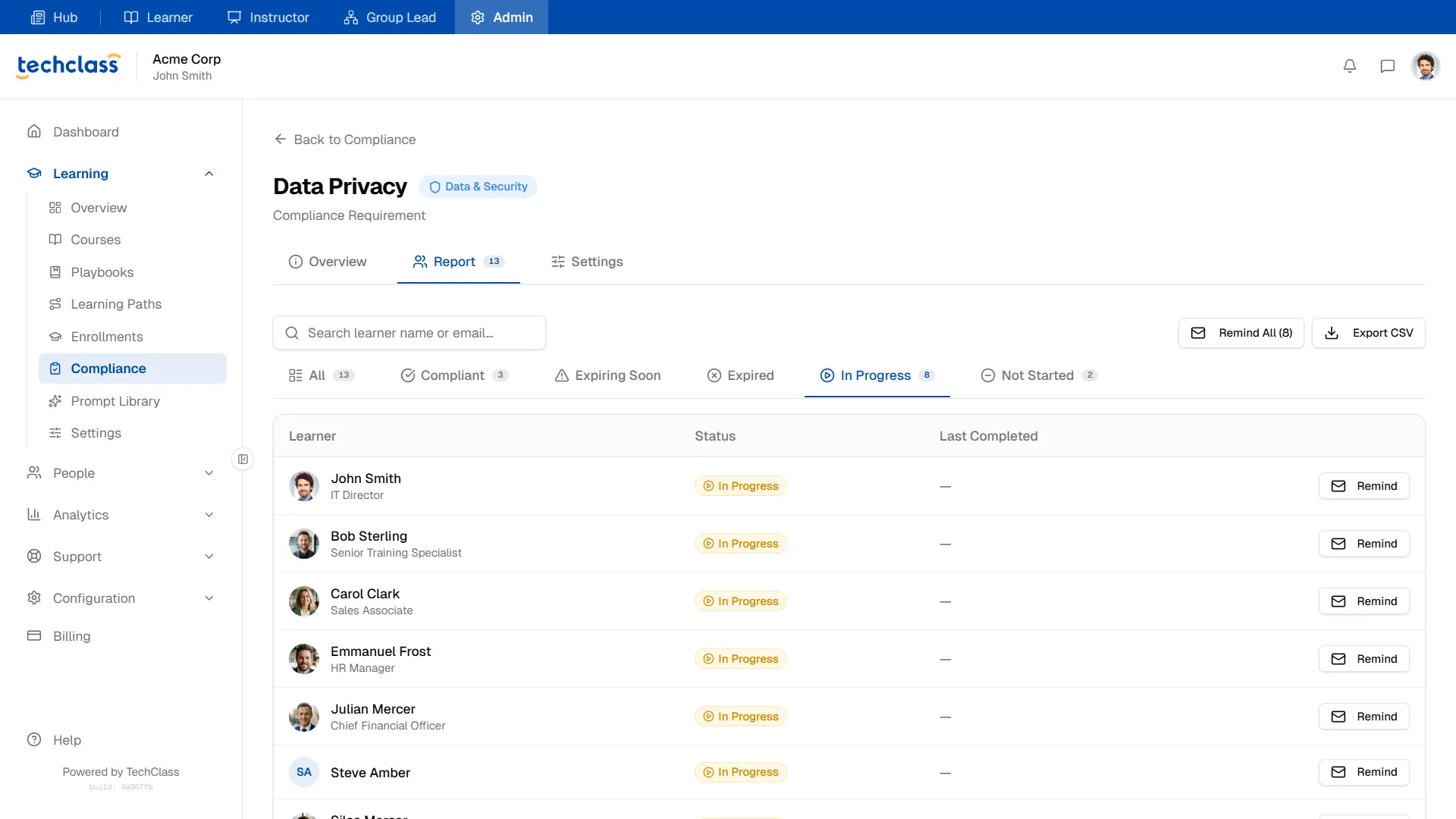
You can filter the report using the sub-tabs along the top to focus on specific cohorts:
- Compliant: Users who have completed the course and are within the validity period.
- Expiring Soon: Users in the warning window who need to retake the course shortly.
- Expired: Users whose validity period has elapsed without a retake.
- In Progress: Users currently taking the course but haven't finished.
- Not Started: Users who are in the Target Group but have never enrolled or begun the course.
Remediating "Not Started" Learners
If you navigate to the Not Started tab, you will see a list of employees who are out of compliance.
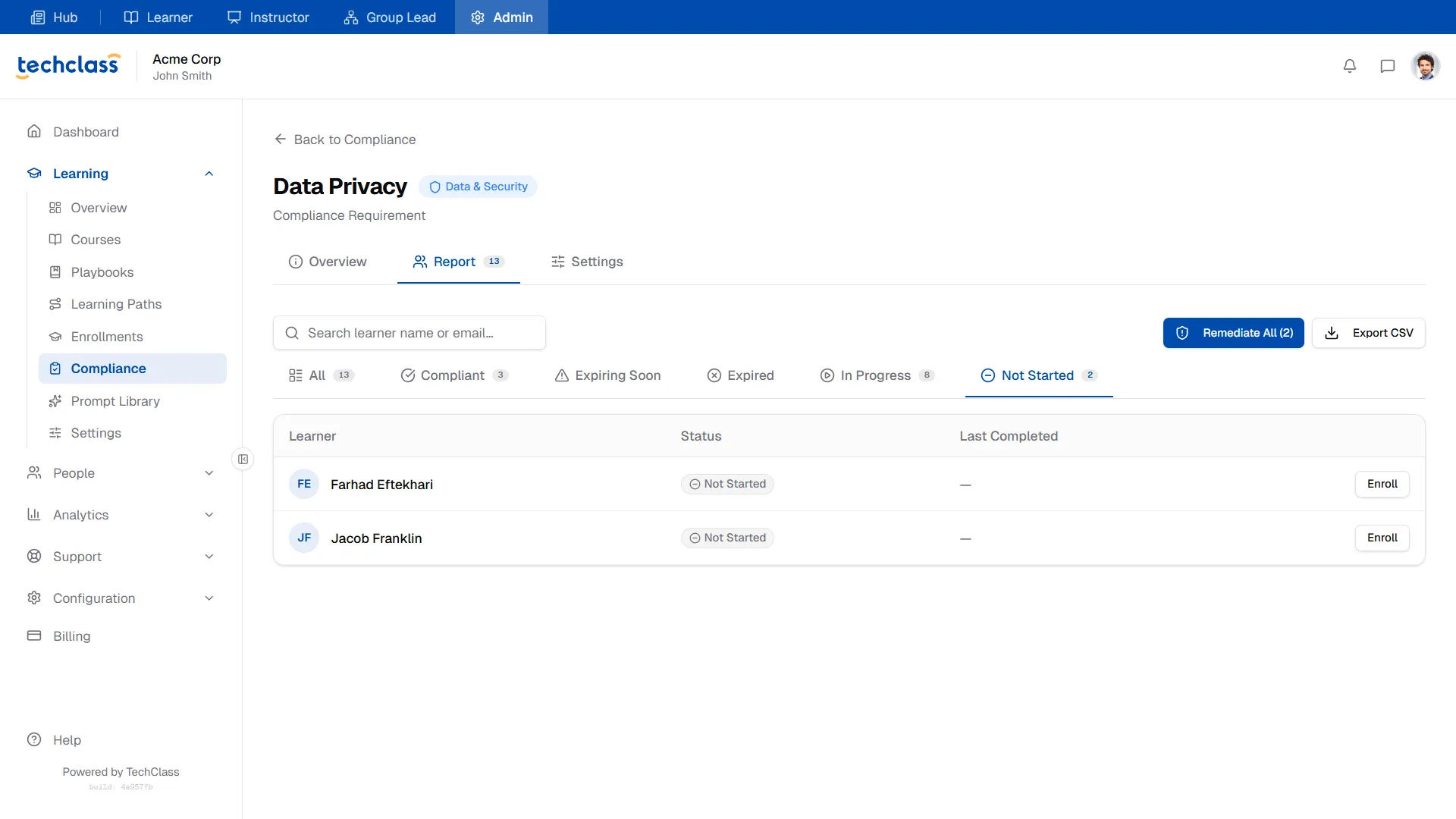
You can manually push these users into the required course by clicking the Enroll button next to their name. To save time, you can click the blue Remediate All button at the top of the table to mass-enroll every user on this list instantly!
Exporting Data
Need to send a compliance report to external auditors or company executives? Click the Export CSV button in the top right of the Report tab to download the current view as a spreadsheet.
5. Requirement Settings
If you ever need to adjust the rules of a requirement, navigate to the Settings tab.
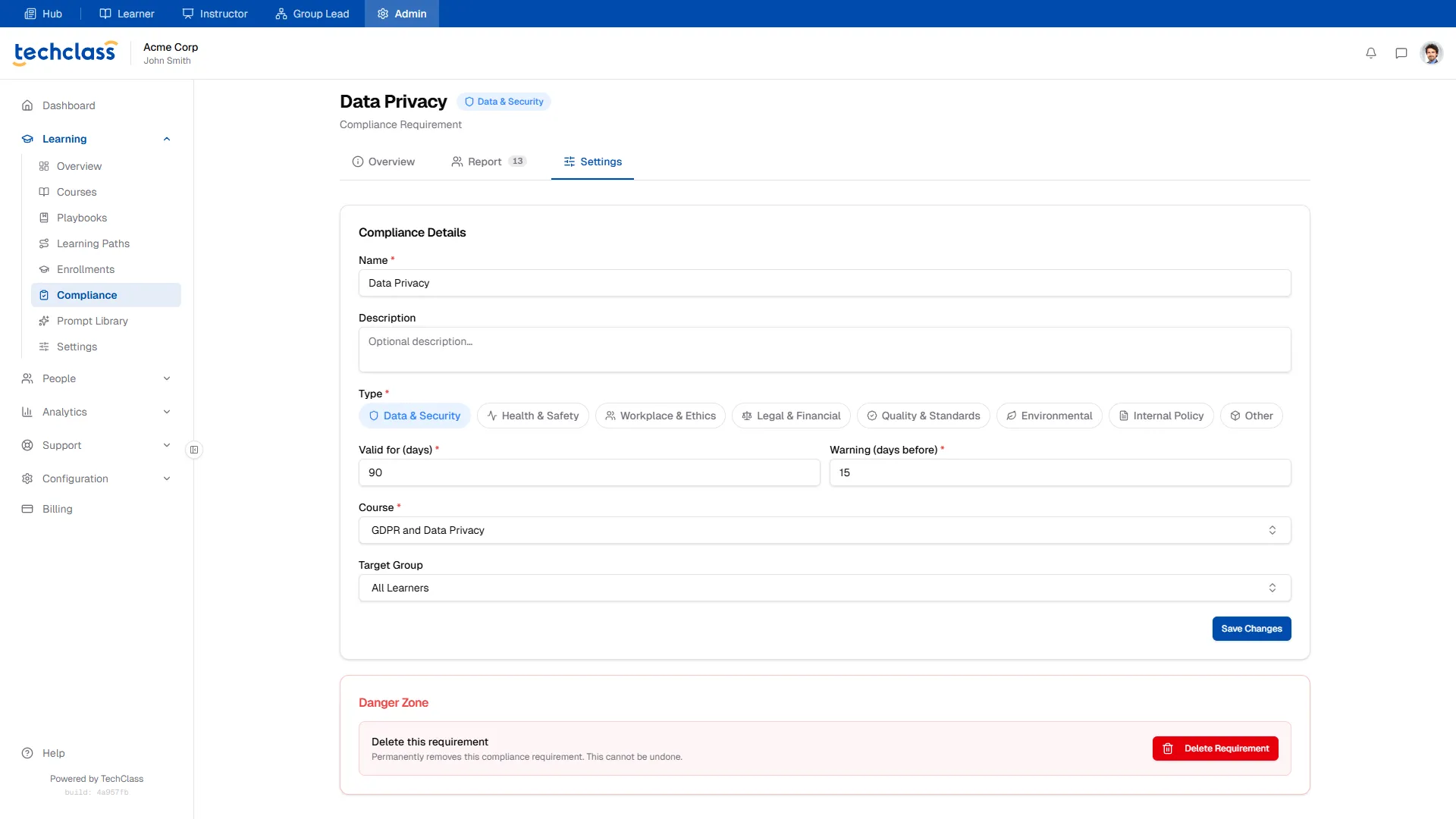
- Updating Rules: You can modify the Validity timeframe, change the Warning window, or swap out the mapped Course if you've built a newer version of the training. Click Save Changes to apply the updates globally.
- Danger Zone: If a regulation changes and the training is no longer required by your company, you can permanently delete the tracker by clicking Delete Requirement.