
Playbooks
Create and manage knowledge base playbooks for your organization.
While Courses are designed for structured, step-by-step training with quizzes and deadlines, Playbooks act as your organization's internal knowledge base.
Playbooks are perfect for hosting living documents like Employee Handbooks, Sales Standard Operating Procedures (SOPs), or Brand Guidelines. They allow learners to easily bookmark specific sections and reference them on the job without the pressure of a "completion" metric.
To manage your knowledge base, navigate to Learning > Playbooks in the Admin Portal sidebar.
1. The Playbooks Dashboard
The main dashboard displays all of your organization's Playbooks as a visual grid.
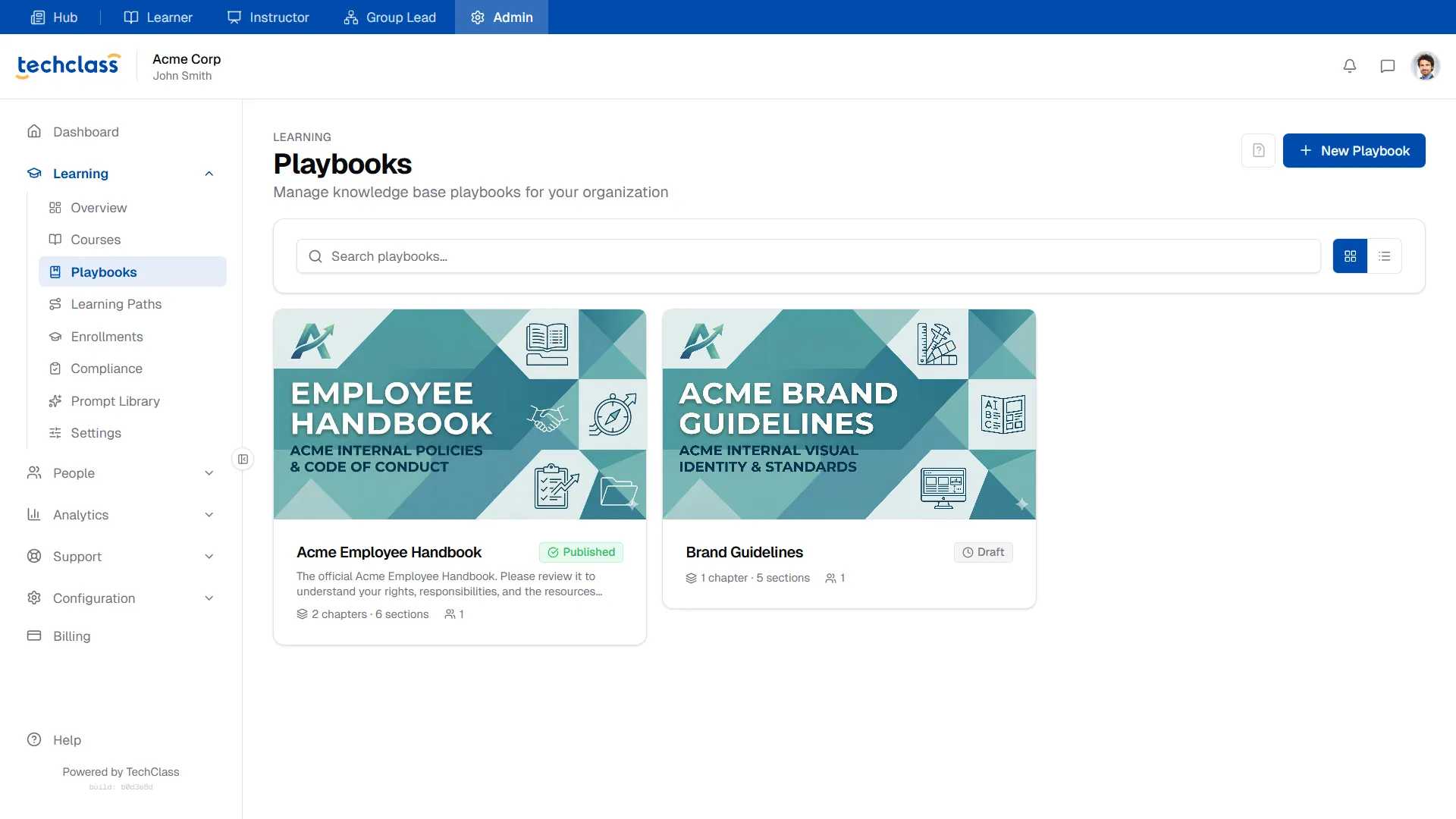
At a glance, you can see the playbook's cover image, title, current status (e.g., Draft or Published), and high-level metrics like the total number of chapters, sections, and assigned instructors.
Creating a New Playbook
To draft a new resource, click the blue + New Playbook button in the top right corner.
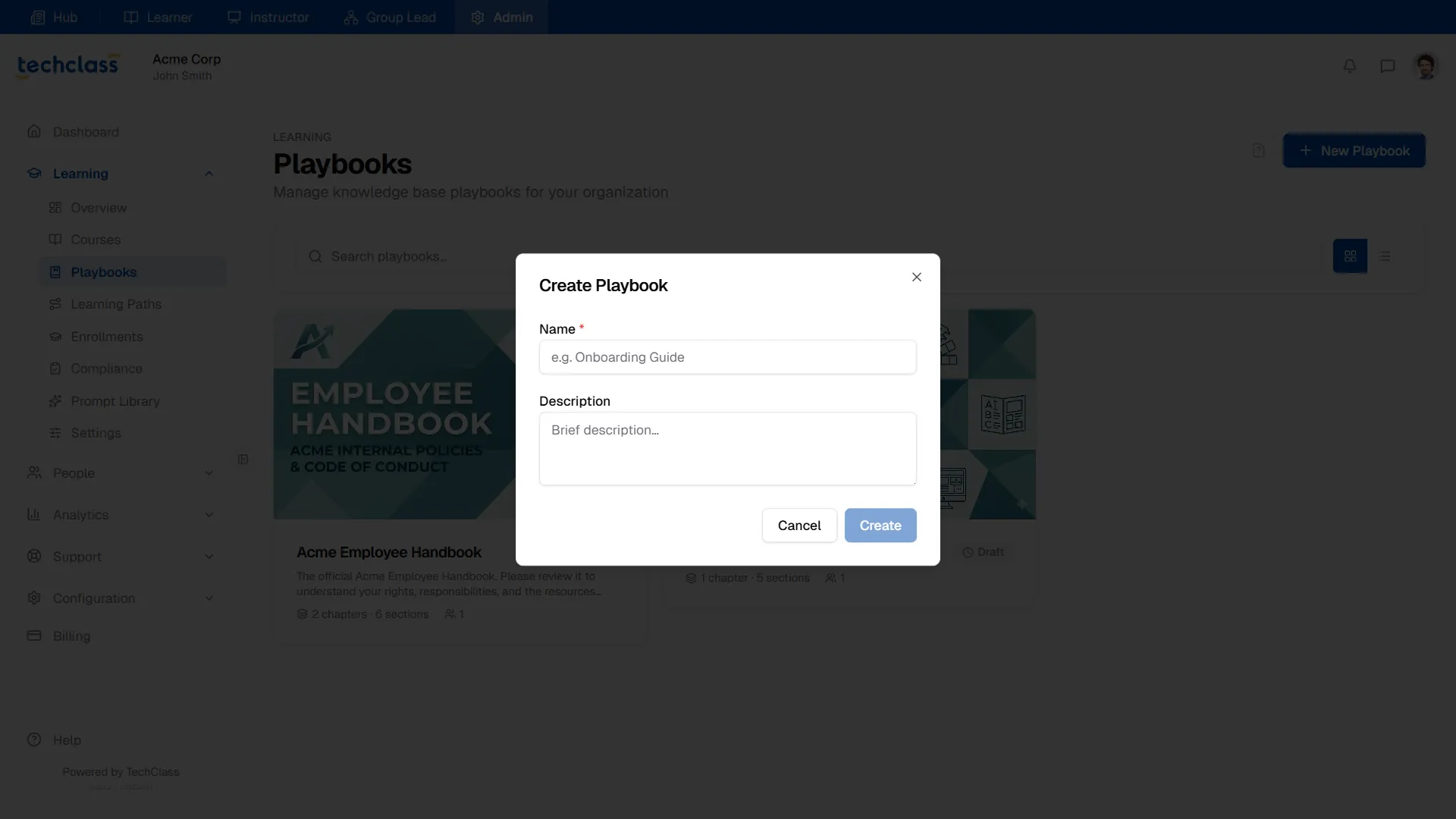
Give your playbook a clear Name and a brief Description of what it covers, then click Create to generate the initial shell.
2. Playbook Overview
Clicking into any playbook brings you to its detailed management page. The default Overview tab acts as your quick-reference dashboard for this specific document.
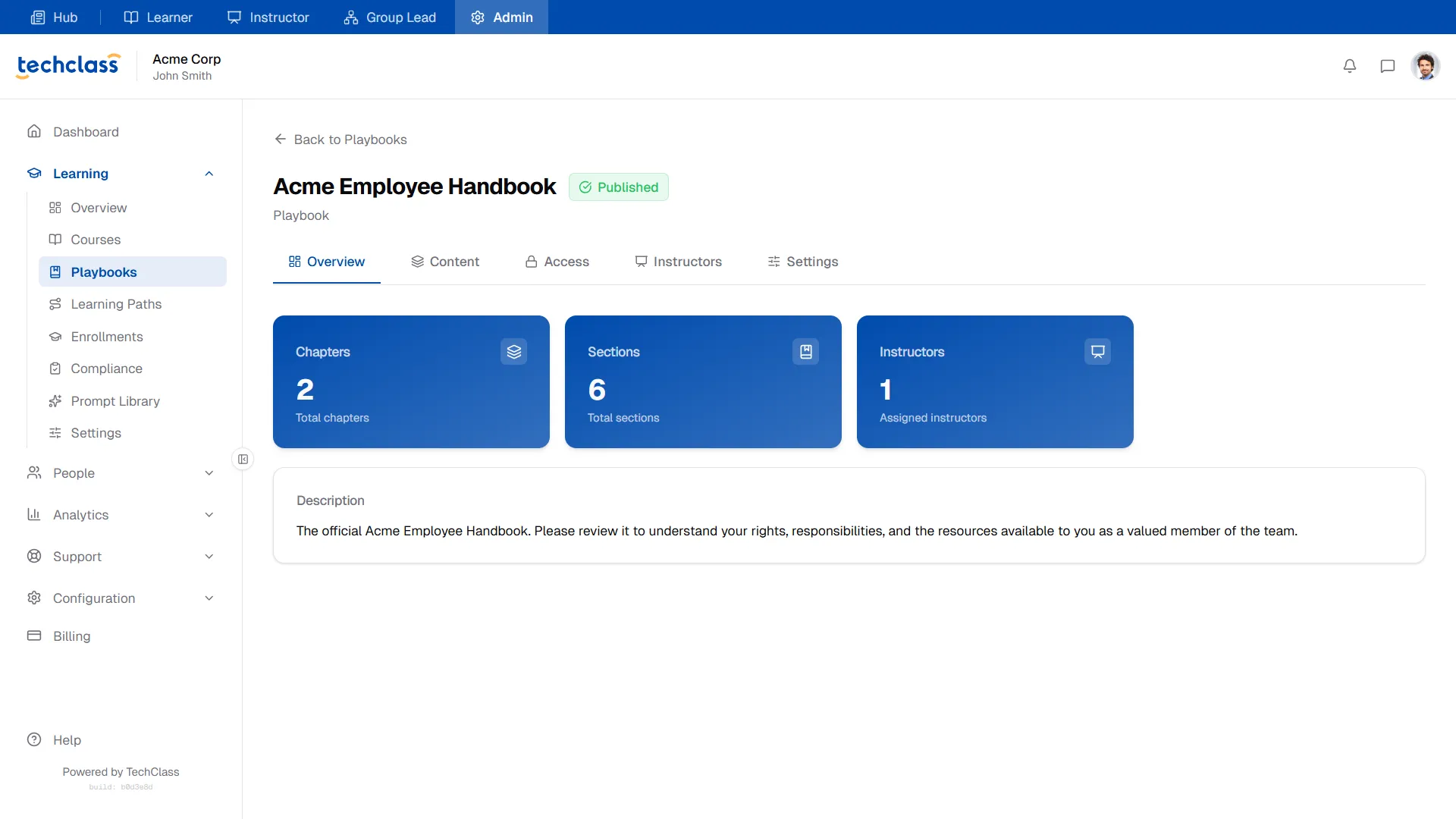
Here, you can instantly check how large the document has grown by viewing the total number of Chapters and Sections, as well as how many Instructors are assigned to maintain it.
3. Building the Structure (Content Tab)
The Content tab is where you organize your playbook's hierarchy. Just like a textbook, Playbooks are organized into Chapters, which are then broken down into individual Sections.
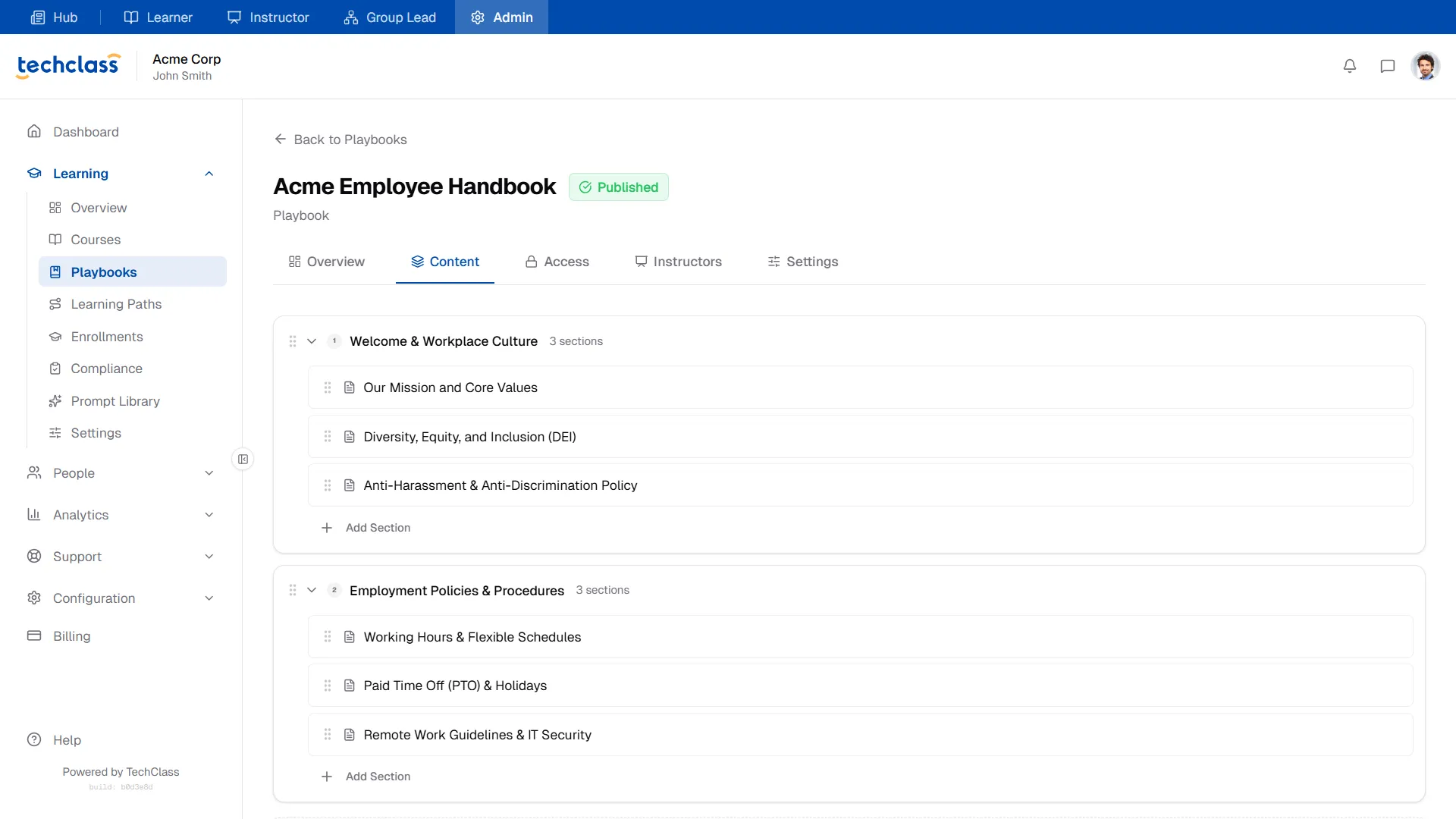
- To add a Chapter: Scroll to the bottom of the list and click "Add Chapter".
- To add a Section: Click "+ Add Section" underneath the relevant chapter.
- To reorder: Grab the dotted grip icon on the left of any chapter or section to drag and drop it into a new position.
4. Writing Content (The Section Editor)
Clicking on any Section in your Content builder takes you into the dedicated Section Editor. This provides a focused, distraction-free environment for writing your documentation.
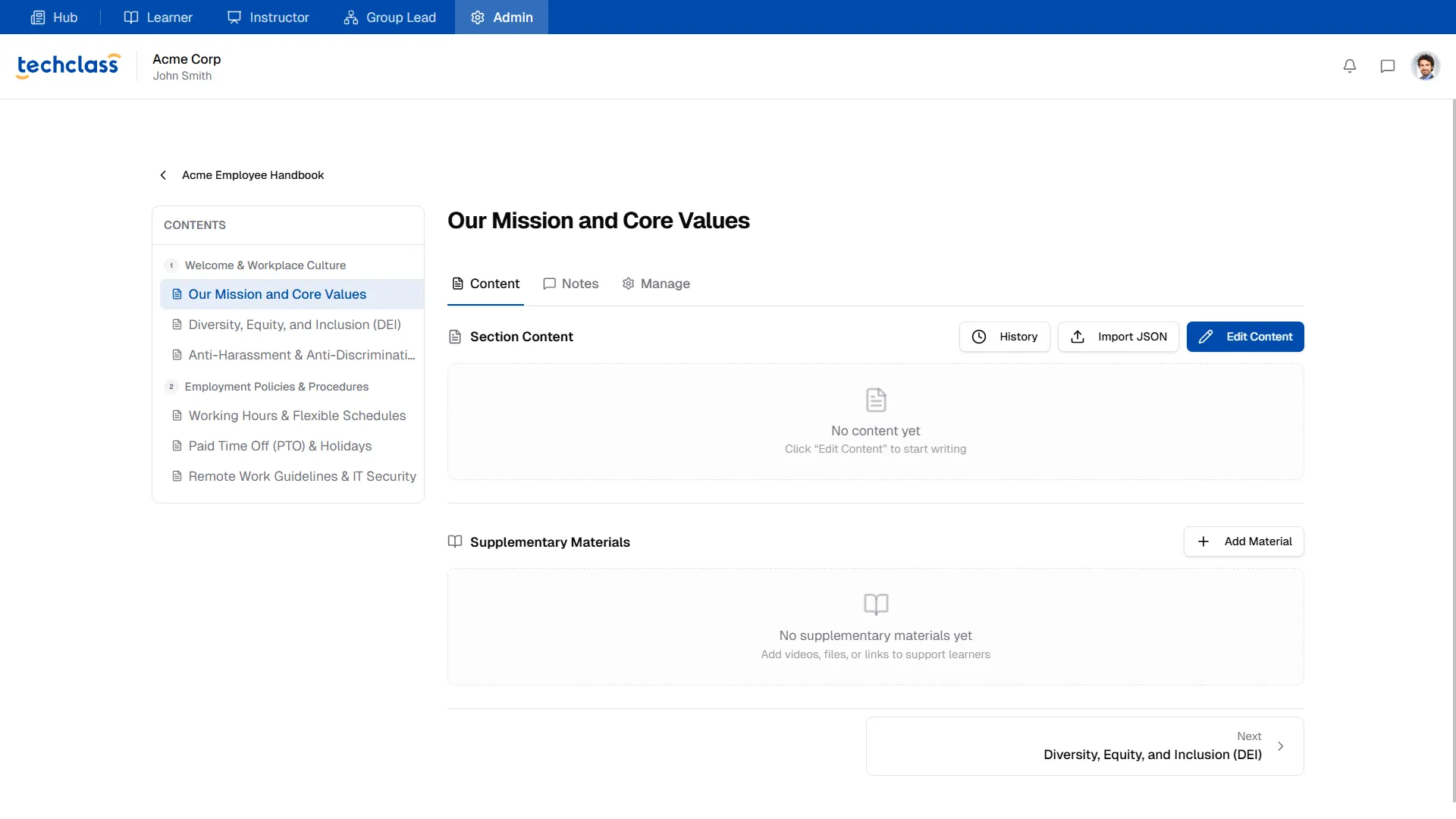
- Rich-Text Editor: Click Edit Content to open the BlockNote editor. Here you can write text, create tables, add callouts, and format your document exactly how you want your learners to see it.
- Supplementary Materials: Below the main text, you can attach downloadable files (like PDF templates or cheat sheets) that support the section.
- Navigation: Use the left-hand sidebar to quickly jump to other sections within the playbook without losing your place.
- Version History: Because Playbooks are living documents, clicking the History button allows you to view past snapshots of the section and see exactly who made previous edits.
5. Managing Access
Unlike some courses that might be available to everyone, Playbooks often contain sensitive departmental information. The Access tab allows you to strictly control who can read the document.
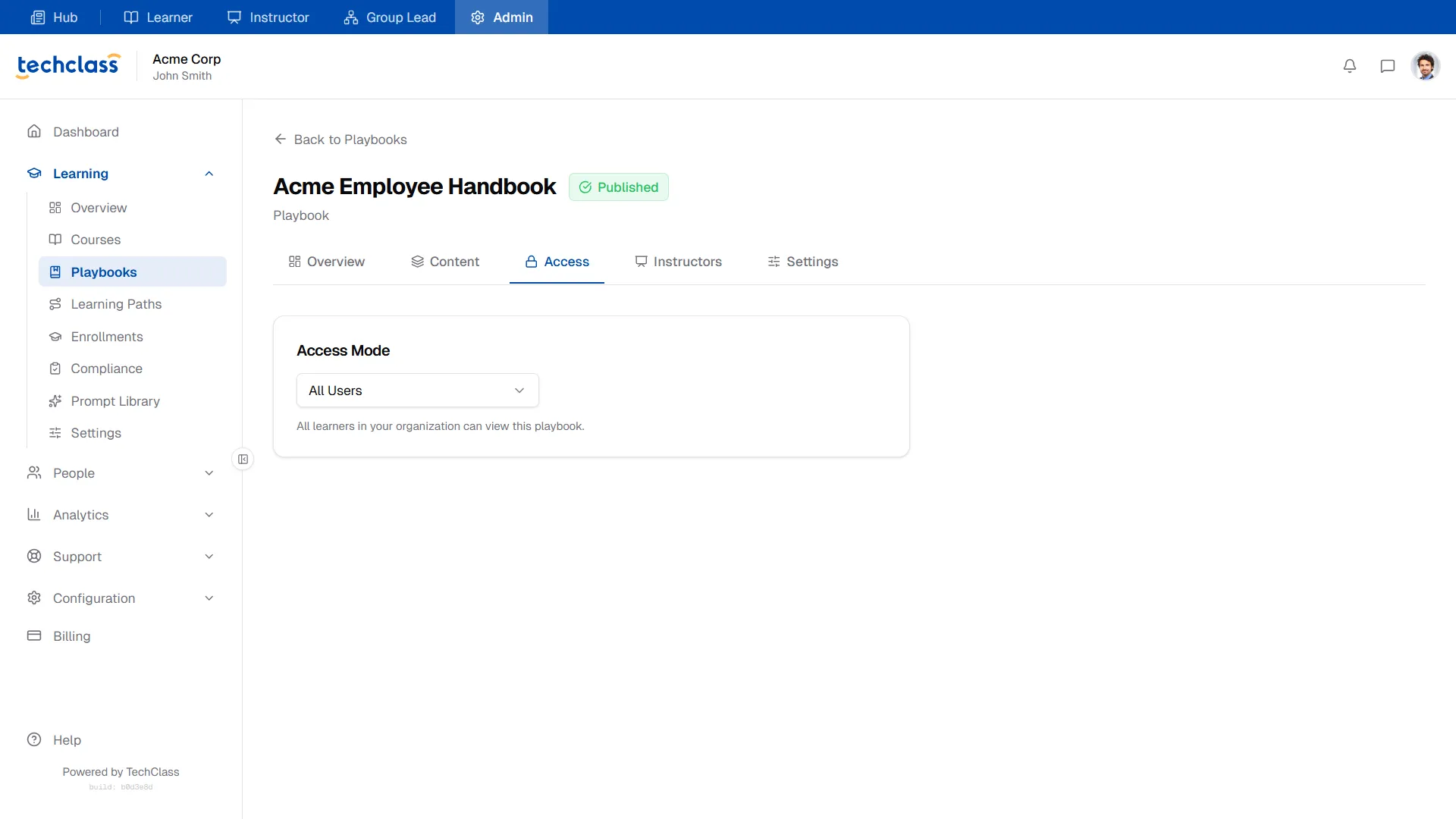
You have two Access Modes:
- All Users: The playbook is visible to everyone in your organization (perfect for Company Handbooks or generic IT policies).
- Restricted: The playbook is locked down. Only the specific users or Groups you manually add will be able to see it.
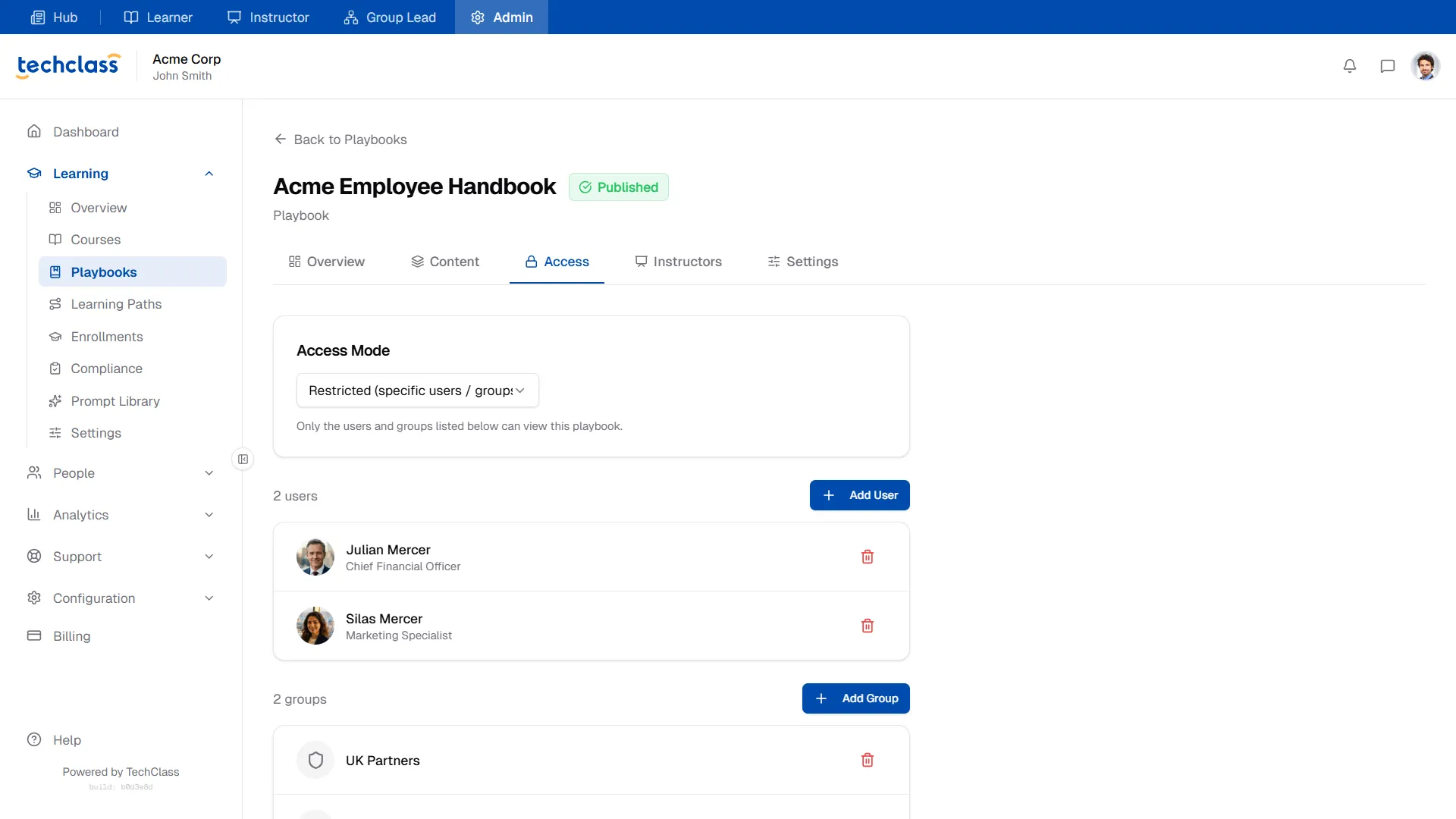
If you select Restricted, click + Add User or + Add Group to build your approved access list (e.g., restricting the "Enterprise Sales Masterclass" playbook solely to the "Sales Team" group).
6. Assigning Instructors
If you are an Admin, you don't have to write and maintain all the documentation yourself! The Instructors tab allows you to delegate management to Subject Matter Experts (SMEs).
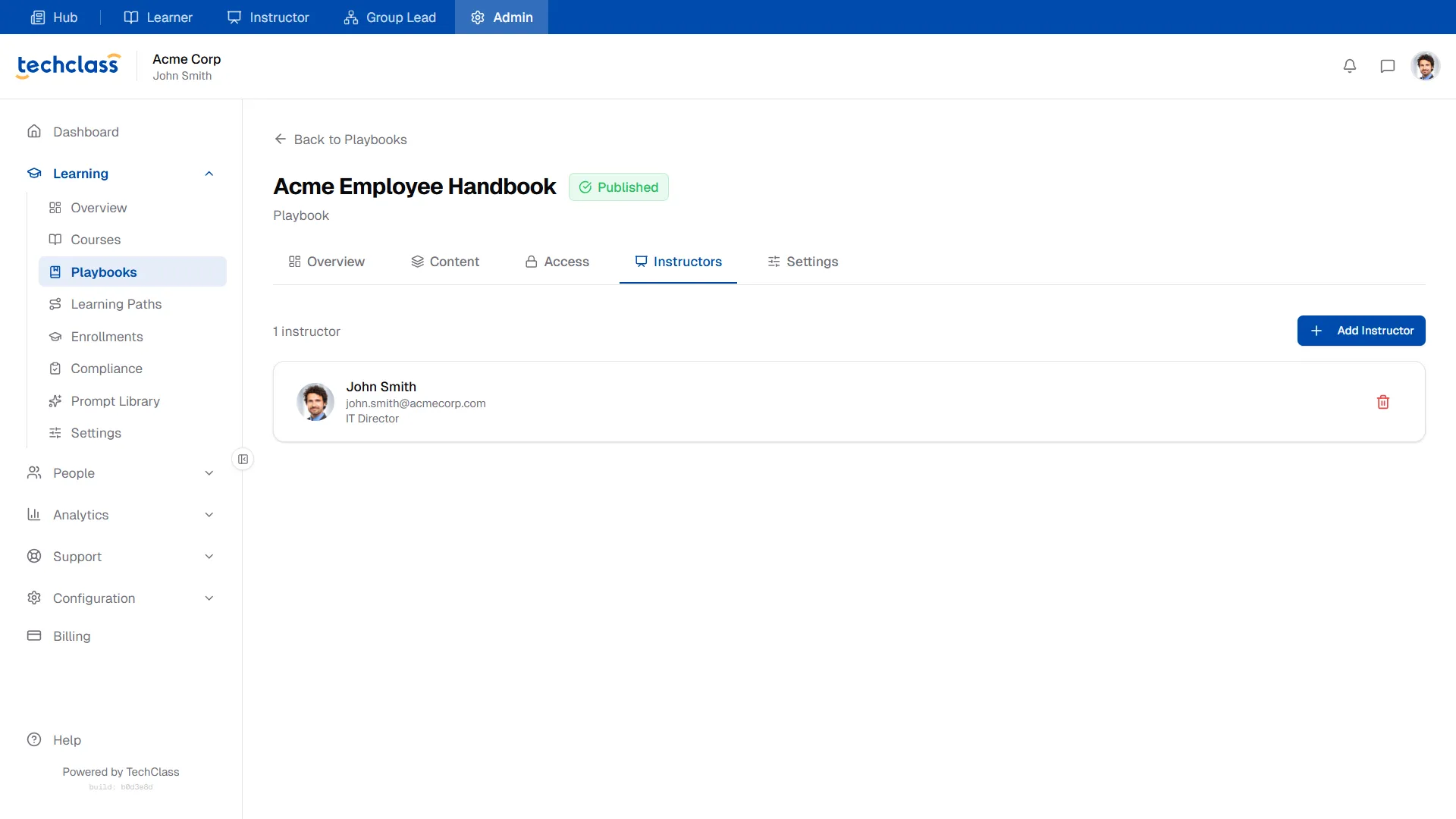
Click + Add Instructor to grant an employee editing rights to this specific playbook. They will be able to log into their Instructor Portal, update the content, and manage the structure without needing full Admin privileges.
7. Settings & Publishing
Before you launch your playbook, navigate to the Settings tab to finalize its metadata.
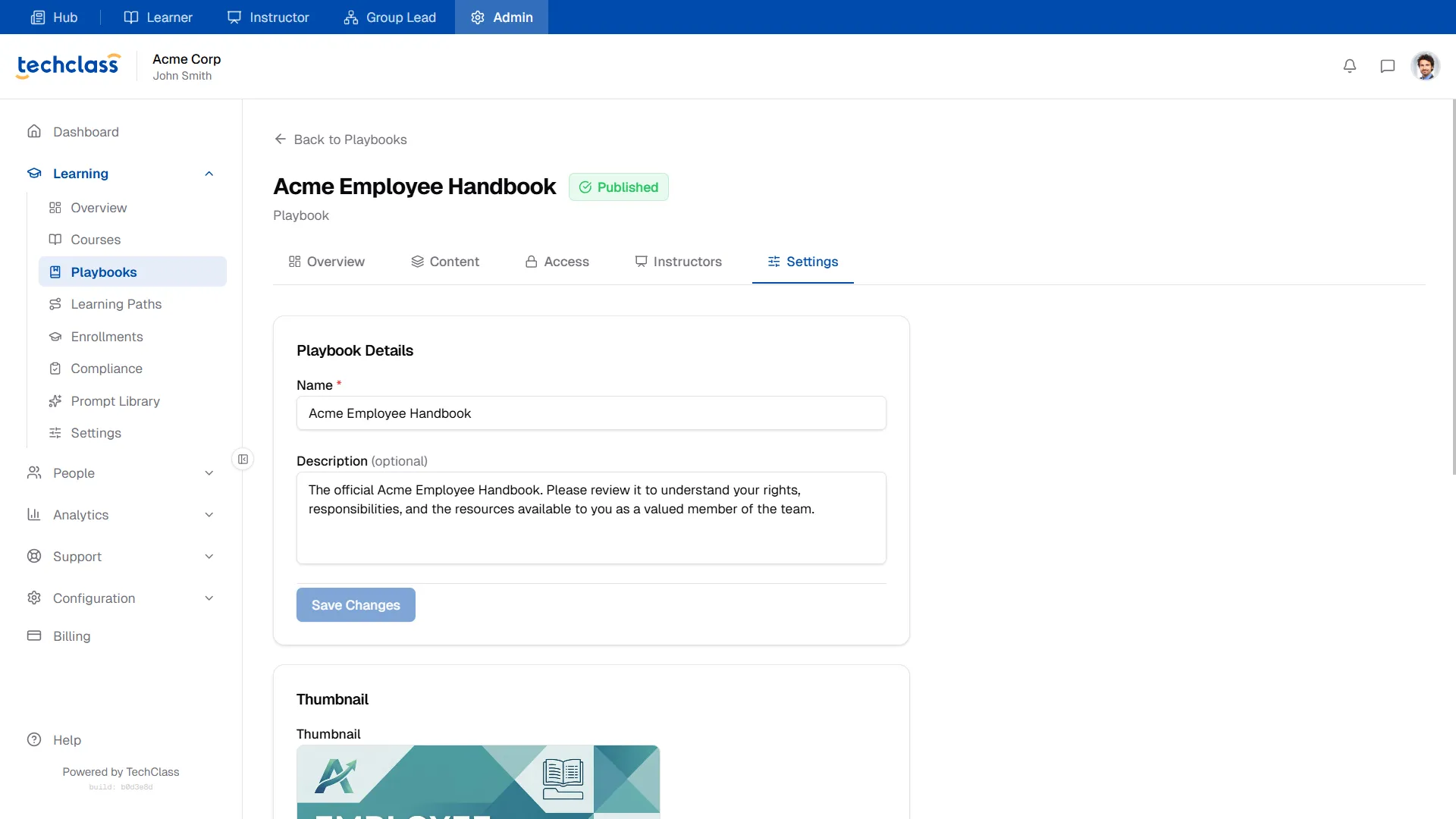
- Playbook Details: Update the Name or Description if the scope of your document has changed.
- Thumbnail: Upload a custom cover image (
JPG,PNG,WEBP) to make the playbook visually appealing in the learner catalog.
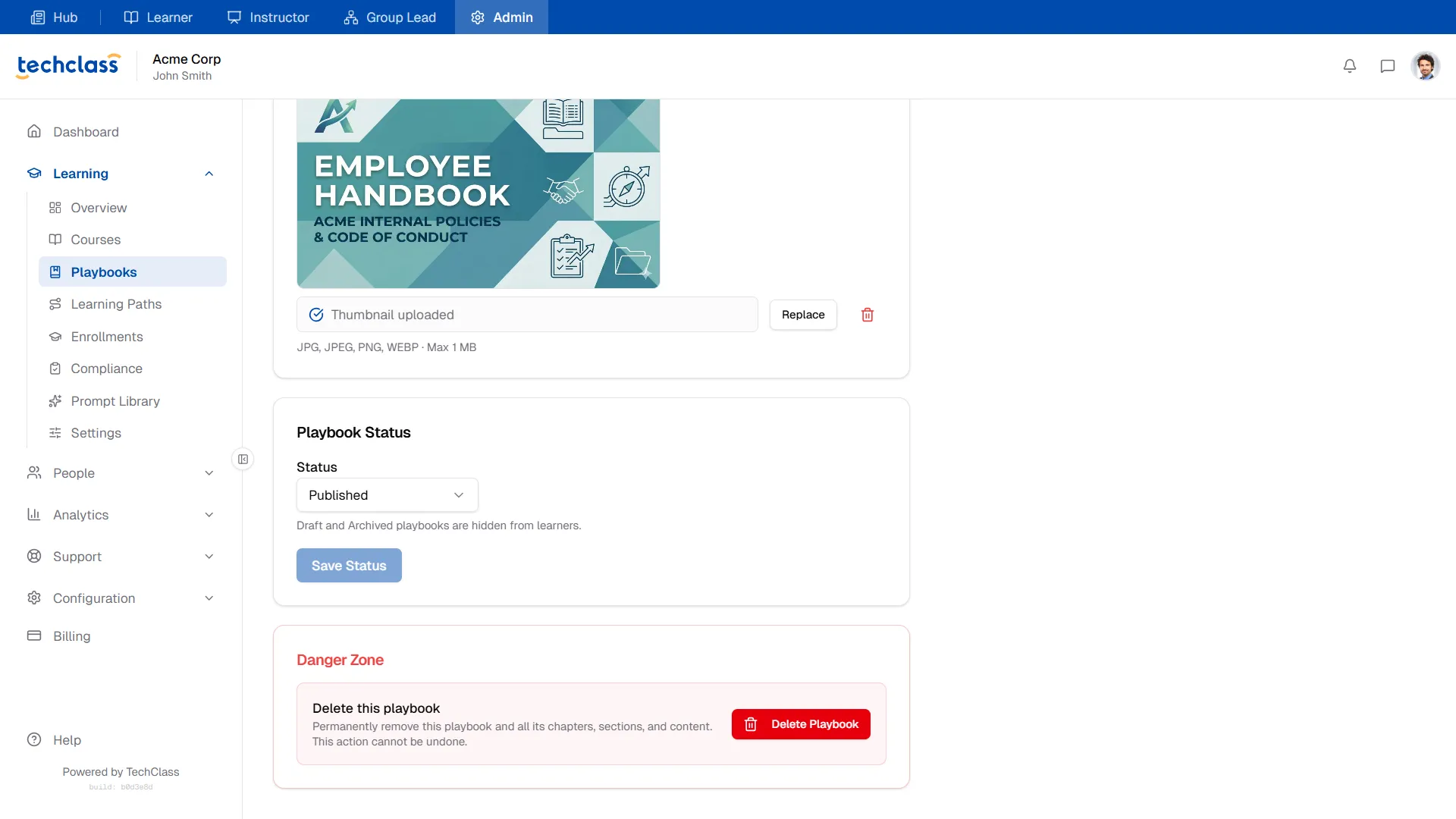
- Playbook Status: Playbooks default to Draft mode, meaning they are hidden from learners. When you are ready to launch, change this to Published and click Save Status. (If a playbook becomes outdated, you can change it to Archived to hide it without deleting the data).
- Danger Zone: If you need to permanently delete the playbook and all of its content, you can delete it here. This action cannot be undone.